Short answer: a shadow is the same green at lower luminance, not a different colour. Measured with this site's key formula, a flat shadow sits 4–26% from the lit key at 10–60% darkening. The default 22%/3% key removes shadows up to about 52% darker. A shadow survives when you lower tolerance to protect hair or green clothing; a hair-safe 12%/8% key leaves a 6-pixel green ring at the penumbra.
| Shadow darker by | Distance from lit key | At 22% / 3% | At 12% / 8% |
|---|---|---|---|
| 20% | 8.45% | clear | clear |
| 30% | 12.75% | clear | alpha 24 |
| 40% | 17.12% | clear | alpha 163 |
| 60% | 25.50% | alpha 255 | alpha 255 |
Flat, multiplicative shadow on #00b140, measured on one 380×360 frame with this site's RGB key. The full ladder, including the 52% row, is below.
What this test is
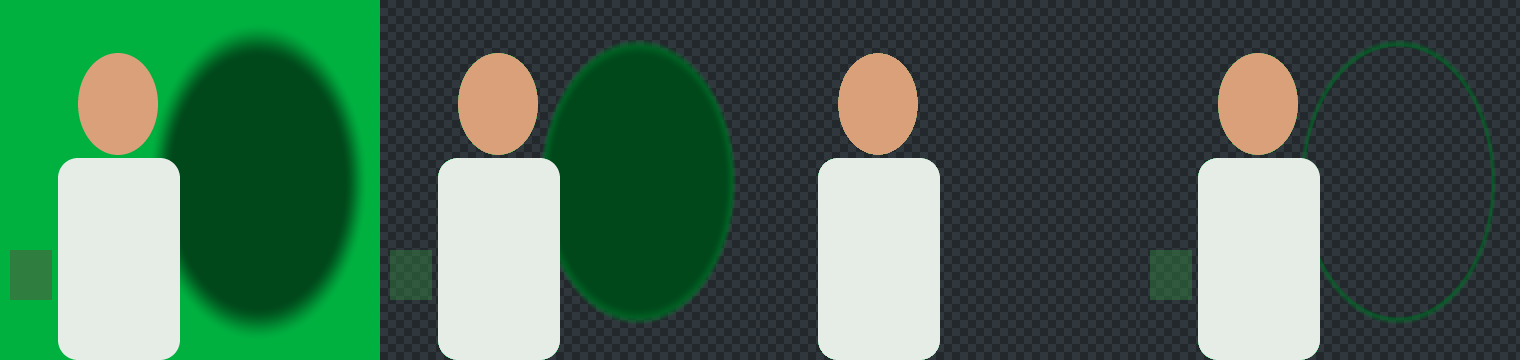
I rendered one 380×360 frame with a lit green backdrop, a soft-edged cast shadow, a skin/white subject and a green fabric swatch. The shadow darkens the backdrop by 60% at its core and fades out over an 18-pixel penumbra. Subject edges are 4×4 supersampled, so the true coverage of every edge pixel is known before the key runs. The key is the exact formula the browser keyer on this site uses: Euclidean sRGB distance from the sampled colour divided by 441.6729559, alpha 0 below tolerance, then a linear ramp across the softness width.
| Test parameter | Value |
|---|---|
| Frame | 380×360, 4×4 supersampled subject edges |
| Backdrop | #00b140 |
| Shadow core | 60% darker: #00471a |
| Penumbra | 18 px, measured across the shadow edge |
| Subject | Skin #d9a07a, white #e6ece6, green swatch #2f7d3f |
| Shadow key sampled from the core | #00471a |
This is a synthetic test, not a camera test. That is deliberate: a known matte is the only way to separate a shadow from the subject and measure the penumbra exactly. No claim here depends on a particular camera or lens.
This is not the same question as an uneven backdrop. That page measures a smooth light falloff across the whole screen. This page measures a local cast shadow with an edge — what the shadow does to the matte, and what happens at the transition. The two-colour page uses a lit green and a shadowed green as one example of two keys; this page is about the shadow itself.
Why a shadow is a second green, not a new colour
For this backdrop, a pure multiplicative shadow has a closed form. The lit key is #00b140 = (0, 177, 64). Darken it by a fraction f and the distance from the lit key is:
distance = f × sqrt(177² + 64²) / 441.6729559 = f × 42.61%
So every 10% of darkening adds 4.26 points of colour distance. A 20% shadow sits at 8.45%, a 40% shadow at 17.12%, a 60% shadow at 25.50%. That is why the shadow keys on the same net as the lit green, just later: it is the same hue on the same line, not a second colour to sample.
| Shadow darkening | Shadow colour | Distance from lit key | Alpha at 12% / 8% | Alpha at 22% / 3% | Tolerance to clear | Green shirt alpha at that tolerance | Hair-blend alpha at that tolerance |
|---|---|---|---|---|---|---|---|
| 10% | #009f3a | 4.30% | 0 | 0 | 4.30% | 255 | 255 |
| 20% | #008e33 | 8.45% | 0 | 0 | 8.45% | 255 | 255 |
| 30% | #007c2d | 12.75% | 24 | 0 | 12.75% | 255 | 255 |
| 40% | #006a26 | 17.12% | 163 | 0 | 17.12% | 0 | 53 |
| 50% | #005920 | 21.20% | 255 | 0 | 21.20% | 0 | 0 |
| 52% | #00551f | 22.13% | 255 | 11 | 22.13% | 0 | 0 |
| 60% | #00471a | 25.50% | 255 | 255 | 25.50% | 0 | 0 |
Alpha 0 = removed, 255 = kept fully opaque. “Green shirt” is #2f7d3f at 15.87% from the lit key; “hair blend” is a 50/50 black-hair/backdrop pixel at 17.75%. The last two columns ask a different question: if you widen the key until this shadow disappears, what else disappears with it?
Read the 40% and 52% rows together. The shadow is not especially dark, yet the tolerance needed to clear it is already past the green shirt at 15.87% and close to the hair blend at 17.75%. The default 22%/3% clears everything up to about 52% darker; the 60% row is where a flat shadow finally survives the default. If your shadow survives at the default, it is deeper than 52%, or its colour has been shifted by ambient light, or your tolerance is below 22% because you lowered it for hair.
The tolerance you already have
Most shadow complaints are not “the key is too weak”. They are “the key is set for hair”. At 12%/8%, a setting that keeps thin strands, the 60% shadow core stays at 255 and the penumbra becomes a visible ring. I measured the ring on the horizontal centreline: 6 pixels of partial alpha for an 18-pixel penumbra. The ring is green because those pixels are a mix of lit and shadowed backdrop, and their colour distance falls inside the 12–20% fade band.
| Setting | Shadow core mean alpha | Partial ring on 18 px penumbra | Green swatch mean alpha | Skin / white |
|---|---|---|---|---|
| 12% / 8% (hair-safe) | 255 | 6 px | 123 | 255 / 255 |
| 26% / 3% (raised) | 0 | 0 px | 0 | 255 / 255 |
| 12% / 8% + 5% / 3% shadow key | 0 | 6 px | 123 | 255 / 255 |
Means taken over a 30×30 core patch, a 6-pixel swatch patch and the shirt/skin interiors. Ring width is the count of 0 < alpha < 255 on row y=182 across the shadow’s right edge, the edge that is not hidden behind the subject.
The ring scales with the penumbra width and shrinks as the shadow gets deeper: the 8-point fade band is a fixed slice of colour distance, so a deeper shadow spreads it over a shorter run of pixels. With a 60% shadow and an 18-pixel penumbra the measured ring is 6 pixels. If your light is small and close, the penumbra is wider and the partial band is wider; if the shadow edge is hard, the band is a pixel or two. Either way, it is a spatial edge, and a colour tolerance cannot make it disappear without moving the whole net.
Why raising tolerance is a dead end
The 60% shadow needs 25.50% tolerance. At that setting the green shirt is 0 and the hair blend is 0: the shadow and the wardrobe are on the same line, and the shadow is simply farther down it. A luma key does not rescue the split. In Rec.709, the lit backdrop is 131.2, a 20% shadow is 105.3, and the green shirt is 103.9 — a 20.8% drop. In colour distance the shirt is 15.87%, which is what a 37% shadow would be. It sits between a 20% and a 40% shadow on both axes simultaneously.
| Swatch | Rec.709 luma | Drop vs lit backdrop | RGB distance from lit key | Imitates a shadow of |
|---|---|---|---|---|
Lit backdrop #00b140 | 131.2 | 0% | 0% | — |
20% shadow #008e33 | 105.3 | 19.7% | 8.45% | 20% in luma, 20% in colour |
Green shirt #2f7d3f | 103.9 | 20.8% | 15.87% | 21% in luma, 37% in colour |
40% shadow #006a26 | 78.6 | 40.1% | 17.12% | 40% in both |
Navy denim #1f2a44 | 41.5 | 68.4% | 31.37% | 68% in luma, 74% in colour |
Rec.709 luma = 0.2126 R + 0.7152 G + 0.0722 B, computed from the same sRGB values the key uses. “Imitates a shadow of” converts distance back through the 42.61% per 100% darkening rule.
This is the part that is easy to miss: the green shirt is not a colour outlier that a smarter key can isolate. In luma it is a 21% shadow; in colour it is a 37% shadow. A luma matte would delete it, a colour matte deletes it, and a shadow matte that removes anything darker than 20% deletes it too. If the shot needs both a 60% shadow removed and a green shirt kept, the fix is not a slider. It is distance from the backdrop, a separate backdrop light, or a different shirt.
Two keys: what they fix, and what they do not
A second key sampled from the shadow does remove the shadow core. On the browser side, load one still into the two-colour keyer, sample the lit green as A and the shadow as B, and keep the smaller alpha. With A at 12%/8% and B at 5%/3%, the core goes to 0 and the green swatch stays at 123 — the same alpha it had under A alone. That is a real gain: the shadow body disappears without touching the subject matte.
The ring is the limit. To cover the penumbra that A leaves, B has to reach 13.6% from the shadow key. Measured distances from #00471a are:
| Pixel | Distance from shadow key | At B = 13.6% / 3% |
|---|---|---|
| Hair blend (50/50 black hair + green) | 8.93% | 0 |
Black hair #1b1b1b | 11.69% | 0 |
Navy denim #1f2a44 | 13.52% | 0 |
Green shirt #2f7d3f | 18.25% | 255 |
Skin #d9a07a | 57.38% | 255 |
B has to reach 13.6% because that is where the shadow key meets the 12–20% fade band A leaves on an 18-pixel penumbra. At 5%, the gap between the two nets is 28–48% darkening, which is exactly the 6-pixel ring.
So a second key at 5% fixes the shadow body and leaves the ring; a second key at 13.6% fixes the ring and deletes black hair and navy denim. There is no tolerance between them that does both. That is not a tool limitation you can tune around; it is the geometry of a shadow edge sharing colours with dark wardrobe.
In FFmpeg the same trade appears with different numbers, because chromakey compares in YUV and its similarity is not the site’s RGB percentage. I tested the six swatches through the two-mask recipe (split, two chromakey filters, alphaextract, blend=all_mode=darken, alphamerge):
| Filter | Lit green | Shadow | Skin | Green shirt | Black hair | Navy |
|---|---|---|---|---|---|---|
| Lit key only, similarity 0.04 | 0 | 255 | 255 | 255 | 255 | 255 |
| Shadow key only, similarity 0.02 | 255 | 0 | 255 | 0 | 255 | 255 |
| Both keys, min matte (0.04 + 0.02) | 0 | 0 | 255 | 0 | 255 | 255 |
| Shadow key only, similarity 0.08 | 255 | 0 | 255 | 0 | 117 | 136 |
Alpha read from the centre of each 100×100 block after the filter. The green shirt is 0 even at similarity 0.02 because in YUV it is closer to the shadow green than the RGB formula suggests. Two chained chromakey filters do not do this: the second overwrites the first matte, which is why the recipe splits the stream.
Two keys earn their place only when the shadow is flat, the wardrobe has no black, navy or dark green, and the penumbra is hard. If any of those is false, fix the shot instead: move the subject farther from the backdrop, light the backdrop separately, or put the shadow on a floor you can matte by hand.
If you want to keep the shadow, rebuild it
Sometimes the shadow is the point: a person standing on a floor needs a contact shadow or they look pasted on. Leaving the original shadow at partial alpha does not give you that shadow. It gives you a green veil, because the shadow pixel’s RGB is still green. Compositing a 60% shadow colour #00471a at alpha A over a new background leaves a green excess of A/255 × (71 − 26) = A × 0.176 levels, independent of the background:
| Alpha left in the shadow | Over white | Over light grey | Green excess |
|---|---|---|---|
| 32 | 223, 232, 226 | 210, 219, 213 | 6 levels |
| 64 | 191, 209, 198 | 180, 198, 186 | 11 levels |
| 96 | 159, 186, 169 | 150, 176, 159 | 17 levels |
| 128 | 127, 163, 140 | 120, 155, 133 | 23 levels |
| 160 | 95, 140, 111 | 89, 134, 106 | 29 levels |
Green excess = G − max(R, B) of the composited pixel. The excess is the same over white, light grey and mid grey because the shadow’s own colour dominates the difference.
A neutral shadow is built the other way round. Key the backdrop and the shadow to zero, take the subject matte, offset it in the light direction, blur it to the penumbra width you want, and multiply the new background by 1 − s × shadow_mask, where s is the darkest point of the new shadow (0.45 in the example below). Every channel is scaled by the same factor, so the result has no green excess. The shadow follows the subject into the new scene instead of being a piece of the old backdrop.
- Key the shadow out completely. Do not leave it at 40–60% alpha to “keep” it. The veil table above is the cost.
- Make a shadow mask from the subject matte. Offset, blur, and use it as a multiplier on the new background. Contact shadows are tighter and darker; cast shadows are wider and softer. Pick the multiplier’s darkest value from the scene, not a fixed number.
- Keep the new shadow neutral. A grey multiplier changes luminance only. If you need a coloured shadow, tint the result, not the old green pixels.
A five-minute check before you shoot
- Sample two points. Pick the lit backdrop and the darkest part of the shadow. In the browser keyer, load one frame, sample the lit green, and read the shadow’s distance with the same formula:
sqrt(dr²+dg²+db²)/441.6729559. - Compare that distance with your tolerance. If the shadow is 8%, a 12% key clears it. If it is 25%, a 12% key cannot, and a 26% key will take a green shirt at 15.87% with it.
- Look at the penumbra at 100%. Fit-to-window hides a 6-pixel ring. Zoom to 100% and look at the shadow’s edge, not the core.
- Move the subject before you move the slider. The farther the subject is from the backdrop, the smaller and harder the cast shadow. That is a set fix, not a key fix.
- Decide the wardrobe last. If the shot needs a deep shadow removed, black, navy and dark green are the colours that pay for it. The table above gives the exact distances.
Green screen remover shadow FAQ
Why does the shadow stay when the lit green disappears?
Because the shadow is farther from the key colour, not a different colour. On this test the lit green is 0% away, a 60% shadow is 25.50% away, and a hair-safe 12% tolerance only reaches the first 28% of darkening. The same thing happens in FFmpeg: the asker in the source question had two greens, 0x32AB57 and 0x016733, and found that one key removed the lit area while the other removed the shadow. That is the expected result when the two samples are 20–25 points apart.
Question source: Video Stack Exchange 34478, “Applying colorkey twice in FFMpeg”: a shadow on the green screen, raising tolerance caused side effects, and two keys each removed only one area.
Can I just raise the tolerance until the shadow goes?
You can, and the shadow will go. The cost is in the last two columns of the ladder: at 25.50% the green shirt is 0 and the hair blend is 0. That is not a small edge loss; the shirt and the thin hair go fully transparent. If the shot has no dark green, black, navy or fine hair, raising tolerance to the shadow’s distance is safe. If it has any of them, the shadow and the wardrobe overlap, and no single tolerance separates them.
Question source: Video Stack Exchange 14623, where harsh shadows from the talent’s feet make the footage “very difficult to key”, and a small LED helps but does not solve it.
Why did my second chroma key leave a green outline around the shadow?
Because the penumbra is between the two keys. The first key’s fade band covers 12–20% distance; a narrow second key on the shadow starts at about 48% of the shadow’s darkening. The gap between them is the partial ring, 6 pixels wide on an 18-pixel penumbra. Widening the second key to 13.6% closes the gap, but that net also contains a hair blend at 8.93%, black hair at 11.69% and navy at 13.52%. The outline is a real gap in coverage, not a rendering artefact.
Question source: Video Stack Exchange 34478, where the two keys “either remove the shadowed area or the light area” but not both in one pass.
How do I keep the shadow so the subject does not look pasted on?
Do not keep the original shadow at partial alpha. Its colour is still green: at alpha 96 it adds 17 levels of green excess over white, light grey or mid grey. Key the shadow out, then build a neutral shadow from the subject matte: offset it in the light direction, blur it to the penumbra width, and multiply the new background by 1 − 0.45 × shadow_mask. That gives a shadow that follows the subject and has no green in it.
Question source: Video Stack Exchange 16046, where the plan is to shoot on green and keep the characters’ shadows, and the asker wonders whether blue would preserve them better.
My backdrop has a crease as well as the subject’s shadow. Is that the same problem?
No, and the difference decides the fix. A cast shadow is a patch with a penumbra on both sides; a crease is a 1–3 px line with a hard edge on both sides, and the fold’s bright lip keys out before the dark side does. A 60% crease sits at exactly the same 25.50% as a 60% cast shadow, so the tolerance arithmetic is identical, but the repair is not: you cannot feather a line, and a min-alpha matte repair that clears a 2 px crease also deletes every hair strand of the same width. The measured comparison is on green screen remover and wrinkled fabric.
Does the browser keyer work on a video shadow?
No. The keyer on this site reads one still image and exports a PNG; it does not decode an MP4. You can use it to sample the lit green and the shadow and to inspect one frame at 100%, and the two-colour keyer can run both keys on that still. For a clip, apply the same two keys per frame with the split-and-min-matte recipe above, then export through the path on green screen remover for video. The matte checks are on green screen remover edge check.
Next step
Sample the lit backdrop and the darkest shadow on one frame before you change anything. If the shadow is within 12%, a hair-safe key already clears it. If it is 20% or more, decide whether you are removing it or keeping it: removing it means either a second key that may eat dark wardrobe, or moving the subject off the backdrop; keeping it means building a neutral shadow from the matte, not leaving green alpha behind. The green cast that remains after a key is a separate problem, covered on green screen remover spill.