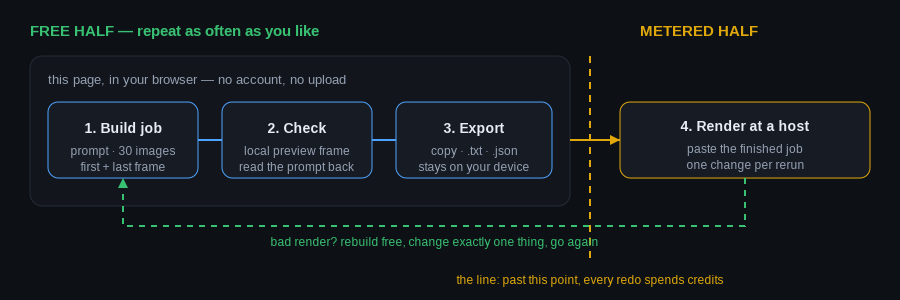
Short answer: split the job into a free half and a paid half, and finish the free half first. Write the prompt, attach references, set first and last frame, ratio, resolution and duration here, export the job as .txt or .json, then paste it into the host where you render. The build step needs no account and no card, so you can redo it endlessly before any credit is spent.
What is free in this workflow and what is not
| Part of the job | Where it happens | Costs money | Can you redo it |
|---|---|---|---|
| Writing the prompt, up to 4,000 characters | This page, in your browser | No | Unlimited, free |
| Attaching references — 30 images, 10 video clips, 10 audio tracks, 30 seconds of video and 30 seconds of audio in total | This page, files never leave the tab | No | Unlimited, free |
| First frame and last frame, with a local preview you can download as .png or .webm | This page, drawn by your own browser | No | Unlimited, free |
| Ratio, resolution, duration, sound — six ratios, 4 to 30 seconds | This page | No | Unlimited, free |
| Exporting the job as copy text, .txt or .json | This page | No | Unlimited, free |
| The render — the actual video | Whatever host runs the model for you | Only if that host says so | Every redo spends credits again |
The line sits in one place: everything before the render is free and repeatable, everything after it is metered. That is why the order matters — build, check, export, and only then go looking for seconds to spend.
The six steps
- Decide the shot on paper first. Subject, motion, start frame, end frame, length. If you cannot say the shot in one sentence, the prompt will not fix it.
- Build the whole job on one screen. Prompt, reference images, reference clips and tracks, first frame, last frame, ratio, resolution, duration, sound. Nothing is committed — the page holds it all in the open tab.
- Check framing locally before anything is spent. The preview panel is drawn from your own first and last frame in your browser. It is not an AI render, but it shows whether the two frames actually cut together.
- Export the job. Copy the prompt for a quick paste, or download
.txtfor reading and.jsonfor anything you feed into a script later. - Paste the finished job into the host you render with. The host only receives a job you have already read back and checked, not a half-thought.
- Change one thing per rerun. First render tells you what is wrong; each following render should test exactly one change.
Why one variable at a time: the arithmetic of a redo
A render that disappoints usually has several suspects: the prompt wording, the reference set, the duration, the resolution, the ratio. Change all of them between two renders and you have learned nothing about which one caused the change. With k changed items there are 2k combinations to separate; testing them in batches does not remove the need to isolate them, it only hides it. One change per render costs k renders instead of 2k:
| Things you changed | If you ever have to separate them | If you change one per render | Render spent on the wrong guess |
|---|---|---|---|
| 2 | 4 | 2 | 2 |
| 3 | 8 | 3 | 5 |
| 4 | 16 | 4 | 12 |
| 5 | 32 | 5 | 27 |
The last column is the number of paid seconds you would have burned to find out what you could have known for free, because the build side of every one of those trials costs nothing. This is pure counting, not a measurement of any host's pricing — the point is the shape of the curve, not a price.
What lands in the .txt and the .json
Both files describe the same job; they are built for different readers. Knowing the fields means you can check a job without opening the page again:
| Field | In .txt | In .json |
|---|---|---|
| Model and mode | Header line: model · text-to-video or image-to-video | model, mode |
| Prompt | Under PROMPT, verbatim | prompt |
| References | Numbered list with file names, clip lengths in seconds | references.images[], references.videos[{name, seconds}], references.audio[{name, seconds}] |
| First and last frame | Two lines, or (none) | firstFrame, lastFrame, null when unused |
| Settings | One line: ratio · resolution · duration · sound | settings.ratio, settings.resolution, settings.durationSeconds, settings.sound |
| File name | seedance-2-5-free-job.txt | seedance-2-5-free-job.json |
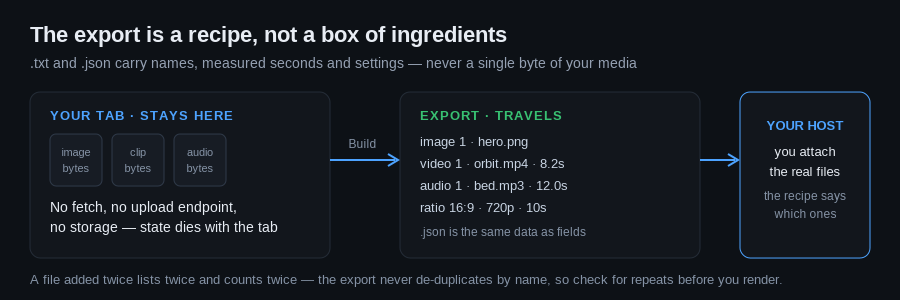
Two things to notice. Reference entries carry only file names and durations — the files themselves stay on your machine, so the host still needs them uploaded separately. And duration travels as a number of seconds, which means the same job can be re-read by a script without parsing prose.
Where the render happens, and what to check there
| Kind of host | What you paste in | Check before you start |
|---|---|---|
| A platform that hands out trial or signup credits | The prompt, then the references one by one | Ceiling on resolution and clip length, watermark, region, expiry of the credits. Offers move, so read the page the day you render. |
| A pay-per-render host | The same prompt and settings | Credits consumed per second at your chosen resolution, minimum and maximum clip length, refund behaviour on a failed render. |
| An app with the model built in | Whatever fields its UI exposes | Which of your settings the UI even lets you set — if it has no first-frame or last-frame slot, that part of the job has to be rebuilt in its own interface. |
| Your own script or API integration | The .json file | Field names your code expects, how references are supplied (paths, uploads or URLs), and the error responses you will get back. |
Whatever you pick, the job you hand it was finished before you arrived — which is the whole point of the free half.
Pre-render checklist
- Prompt reads back as one sentence you would say out loud, and names one subject doing one thing.
- Reference counts are inside the caps: 30 images, 10 clips, 10 tracks, video and audio each 30 seconds in total.
- Reference files are actually available to upload at the host — names in a
.txtare not files. - First frame and last frame were previewed together and cut cleanly, or neither is used on purpose.
- Ratio matches where the clip will be published; duration sits between 4 and 30 seconds for model 2.5.
- Resolution is the one you intend to ship, not the one the free tier happens to offer.
- The host's own limits for the day are read: clip length, resolution, watermark, credit expiry.
- Exactly one thing is different from the previous render, and you wrote down what it is.
Seedance 2.5 free workflow FAQ
How do I use Seedance 2.5 free end to end?
Free all the way up to the render. Build the job here — prompt, references, first and last frame, ratio, resolution, duration, sound — preview the framing locally, export it as .txt or .json, then paste it into the host where the model actually runs. Everything before that hand-off costs nothing and can be redone any number of times.
Is Seedance 2.5 free?
Building a job is free here and always will be: no account, no card, no ads, nothing uploaded. The render itself is metered by whoever runs the model, so "free" ends at the export button. This page tells you where that line is rather than pretending it is not there.
Is there a free Seedance 2.5 video generator that needs no account?
This page generates the job, not the video — no sign-up, no upload, no render. The video is produced wherever you run the model, on that host's terms. Treat any site claiming free unlimited renders of a closed model as a promotion with an end date, not as a permanent feature.
Can I run this workflow on a phone?
The build half, yes. The layout is built for narrow screens with touch-sized controls and no horizontal scrolling, and the export buttons work the same. Whether a host's render interface is pleasant on a phone is that host's business — the job file travels between devices as a download either way.
What happens to my files after I export?
Nothing. The page holds everything in the open tab until you close it: no account, no server call, no history. The .txt and .json land in your downloads folder, and the reference files stay wherever they were on your device.
What is the difference between the .txt export and the .json export?
The .txt is a readable job sheet: model and mode on the first line, then PROMPT, an enumerated REFERENCES list with each clip's duration, FIRST FRAME / LAST FRAME, and a SETTINGS line with ratio, resolution, duration and sound. The .json is the same job in fields — tool, model, mode, prompt, references as arrays of names and seconds, firstFrame, lastFrame, settings — so a script or another tool can read it without parsing prose. Same content, two shapes: paste the .txt, feed the .json.
Why does my job show an over-cap warning on video or audio references?
Because the builder counts seconds, not files. Video references are capped at 30 seconds in total and audio references at 30 seconds in total, on top of the 30 images and 10 clips each. When the running total passes the cap, the note under the upload turns amber and names the culprit — "video references total 34.0s", for example. Drop the longest clip or split the job into two runs; a reference set that silently overruns is how a job comes back ignoring half your inputs.
Why did the 1080p button disappear when I switched the model?
Because the resolution chips follow the selected model. With Seedance 2.0 chosen, the 1080p chip is shown and the duration slider is clamped to a 15-second maximum. With Seedance 2.5 chosen, 1080p is hidden again — the builder offers 480p and 720p — and the slider opens up to 30 seconds. Switching models also resets a selected 1080p back to 720p, so pick the model first, then the resolution, or your setting is silently undone. The order of operations: model → resolution → duration.
Does Seedance just auto decline anything after 2-3 failed generations?
No host publishes a decline counter, so treat "it declined again after a few tries" as two separate problems with separate fixes. If each attempt comes back with a content refusal, the input is what changed — copy the exact message, then rebuild here: edit one clause, check the reference set for a conflicting subject or style, and rerun, because the job sheet costs nothing to redo. If the refusals start only after repeated failures on the same account, that is rate limiting on that host, not a property of the model — it behaves differently on different hosts, and the honest move is to read that host's current rules rather than trust a number you saw in a thread. The free half is always repeatable: prompt, references and frames live in this builder, and you can rerun the setup as many times as it takes before spending a credit.
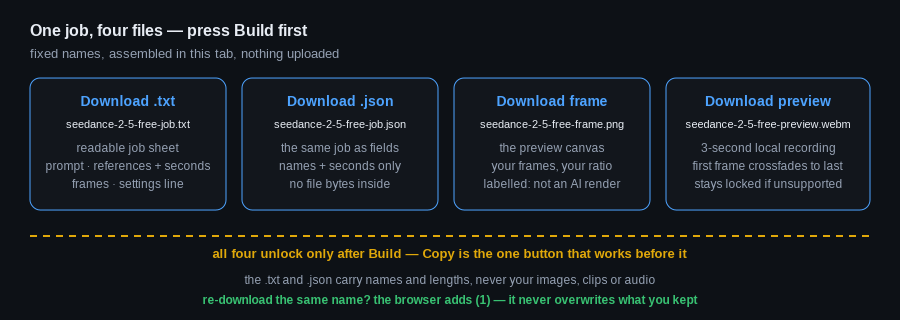
Can I press Copy before I press Build?
Yes — Copy prompt is the only action on the page that never waits for Build. It runs the same builder function over whatever is in the form right now, so as soon as a prompt is typed you can copy the sheet, even while the output panel below is still empty (with nothing written yet you get the sheet with "(no prompt yet)" in the prompt slot, which is a handy way to see the layout of the export before you commit to it). The four download buttons behave the opposite way: .txt, .json, frame .png and preview .webm start disabled and only unlock once Build has run and produced output — the .webm unlocks a beat later, after the local preview recording finishes, and stays locked if this browser cannot record video at all. Rule of thumb: Copy works before Build, downloads wait for Build. If the browser refuses clipboard access the status line says "Copy was blocked by the browser — use Download .txt instead", which is exactly why that download exists behind Build.
The status says "Prompt copied to the clipboard" — is that only the prompt?
No, the message undersells what happened. The Copy handler runs the same function Build runs and copies the whole job sheet: model and mode on the first line, then the PROMPT block, then the REFERENCES list with each file's seconds, then FIRST FRAME and LAST FRAME lines, then the SETTINGS line with ratio, resolution, duration and sound. So if you paste it into a document you get the entire job, not the paragraph you typed — which is what makes it usable as a hand-off. The one thing Copy never adds is the preview image: the frame and the .webm are separate downloads that stay locked until Build has run.
After the first Build, does the output box keep up with my edits?
Only for some edits — it is worth knowing which ones. Once Build has run, the box is redrawn by the same path that redraws the preview: switching model or mode, pressing another ratio, resolution or sound chip, dragging the duration slider, and adding or removing any reference all rewrite it immediately. Before the first Build the box stays frozen on "No output yet.", and typing in the prompt field alone does not redraw it either: the field keeps the live wording in memory and moves the n/4000 counter, but the visible box still shows the paragraph that was current at the last redraw. That is why Copy and Download .txt can hand over your newest sentence while the box on screen looks one edit behind — they read the same live value, not the rendered box. Press Build again, or toggle any setting, and the box catches up.
What files do the four download buttons produce, and under what names?
Four files, four fixed names, all built from the same slug: Download .txt writes seedance-2-5-free-job.txt (the readable job sheet), Download .json writes seedance-2-5-free-job.json (the same job as fields), Download frame writes seedance-2-5-free-frame.png (the preview canvas as it looks right now), and Download preview writes seedance-2-5-free-preview.webm (a three-second recording of the local preview, made on Build). The names never change with the content, so downloading twice gives you a second file the browser calls …(1) rather than overwriting the first — rename what you keep. All four stay disabled until Build has run, and the .webm unlocks a beat later, once the recording finishes; if this browser cannot record video, that one stays locked while the other three work. Nothing is uploaded by any of them: each download is assembled in the tab and handed straight to your downloads folder.
How long is the preview .webm, and what if my browser cannot record it?
Three seconds, always. The recording starts only when you press Build: the canvas plays a fixed three-second animation — first frame cross-fading into the last one with a 4% slow zoom — captured at 30 fps and 4 Mbps. The duration slider does not stretch it, and changing a chip or the slider afterwards does not re-record it; the file you can download is the one the last Build produced. If the browser cannot record at all, the builder says so in the status line ("Preview video is not supported in this browser — the .png frame is still available.") and the frame download keeps working; if a recording starts but comes out empty, you get a warning to that effect and the .png again. The preview answers "does the framing hold", never "is this the render".
I chose 480p — why does the downloaded frame .png measure 720×405?
Because the frame file is a picture of the preview canvas, and the canvas is sized by the ratio chip alone: its long edge is fixed at 720 pixels whatever the resolution chips say. Pick your ratio and the pixel dimensions follow — 16:9 gives 720×405, 9:16 gives 405×720, 1:1 gives 720×720, 4:3 gives 720×540, 3:4 gives 540×720, and 21:9 gives 720×309. The resolution chips never touch the canvas: they write one word into the SETTINGS line of the .txt and one field into the .json, so moving 480p → 720p after a Build redraws the same pixels at the same size, and the .webm records that same canvas. One more trap worth knowing: the HTML declares the canvas as 640×360, but that default is replaced on page load before you touch anything, so a downloaded frame is never 640×360 — 720×405 is the normal 16:9 answer, not a bug or a resolution mix-up. The division of labour: the frame checks composition, framing and the first/last pair; the word in the SETTINGS line is what tells the host which render size you asked for.
Does the .json export contain my images, or only their names?
Only names, and the same holds for every other reference type — the .json is a recipe, not a box of ingredients. Images are written as plain filename strings; clips and audio as a name paired with the measured seconds; the first and last frame as their filenames (or null when unset); settings as ratio, resolution, duration and sound. There are no bytes in the file: no base64, no thumbnails, no media. That is deliberate — the export is a document you can paste, diff or attach to a message, and the actual files never leave your tab because the tab never sends them anywhere. Wherever you render, you attach the real files yourself; the .json only tells that host which files this job expects and how they were configured here.
What happens if I press Build without typing a prompt?
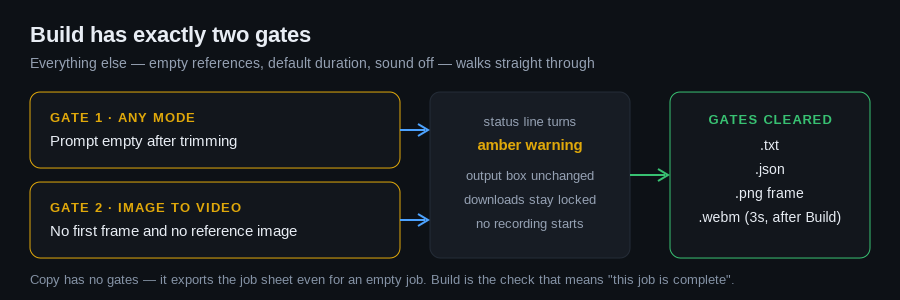
Build refuses, and it is one of only two refusals the button has. Your text is trimmed first, and if nothing is left the status line reads "Type a prompt first — the output is built from what you write." and nothing else moves: the output box keeps whatever it showed, the four downloads stay locked, and no recording starts. The second gate is mode-specific — in Image to Video with no first frame and no reference image attached, you get "Image to Video needs an image: add a first frame or a reference image." Everything else passes Build regardless: an empty reference list, a duration you never touched, sound switched off. Copy is not gated at all — it will hand you the job sheet for an empty job, which is why Build, not Copy, is the check that means "this job is complete".
Why don't my reference images show up in the preview?
Because the preview never draws them — that is a rule of the canvas, not a bug in your files. The local preview composites exactly two things: your first frame and your last frame (cross-faded with a 4% zoom during the .webm recording), or, when neither frame is set, a dark gradient with your prompt written on it. The 30 reference images, 10 clips and 10 audio tracks are never painted onto the canvas; they exist for the export, where they travel as numbered filename lines in the .txt and named entries in the .json. So a thumbnail list full of references next to a blank-looking preview is normal: the preview answers "does the framing hold", the reference list answers "what did I attach". Judge the frames on the canvas, judge the references by the counters (0/30, 0/10, 0/10) and the exported sheet — both are readable before anything is spent.
My rendered clip has a constant background hum or a bubbly sound in it — can this workflow do anything about that?
Not by editing the clip, and it is worth knowing exactly where that sound comes from before you blame your prompt. This builder never touches audio: the sound chip only writes the words sound on or sound off into the SETTINGS line of the export, and the local preview .webm has no audio track at all — it is a silent recording of the canvas, so a noise you hear in a finished video cannot have come from here. What the workflow gives you is a controlled way to test it: export the same job twice, once with sound off, change nothing else, and render both. If the hum disappears, the audio pass at your host is producing it and you now know to keep sound off for that job; if it stays, change one prompt clause that describes the room or the ambience and render again. One variable at a time is slower than guessing, and it is the only way that ends with an answer instead of two broken takes.
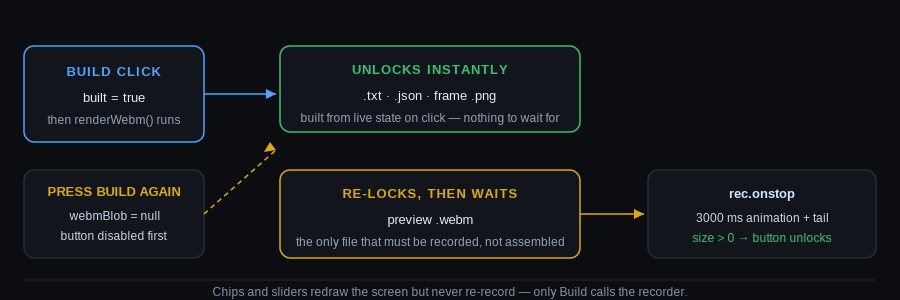
Build says "Output built", but the Download .webm button is still greyed out — is something broken?
No, the button is on a different clock from the other three. Passing Build unlocks Download .txt, Download .json and the frame .png immediately, because those are assembled from the state you already have. The preview .webm has to be recorded: every Build first re-locks it and clears the previous file, then starts a MediaRecorder over the canvas stream, plays a fixed three-second animation and stops about 180 ms later. Only in that rec.onstop callback, and only if the recorded blob is bigger than zero bytes, does the button go live — so a short wait after the success message is normal. It stays locked for two real reasons: this browser has no MediaRecorder or captureStream, in which case the status line says "Preview video is not supported in this browser — the .png frame is still available."; or the recording came out empty, which the status line also announces. Either way the .txt, .json and .png are already yours, and the .png is the file you would have used to check framing anyway.
My rendered clip speaks Mandarin although my prompt was written in English — what can this workflow check?
Where the words come from is not this builder: it never renders and never hears audio. What it can do is prove exactly what went in, because the prompt field is carried verbatim into the export — Build only trims whitespace off the ends, the 4,000-character counter counts what you typed, and the .txt PROMPT section and .json prompt field are that text word for word. So when a render comes back in the wrong language, check the sheet, not your memory. Four checks, in order. One: is the language of the spoken lines stated in the prompt text itself — the export cannot add it for you, and dialogue you left implicit is dialogue the host decides. Two: if you attached voice or ambience tracks (up to 10, sharing the 30-second pool), the export lists them by filename only — nothing in the sheet marks a track as "English voice", so that assignment has to live in a prompt clause too. Three: does the SETTINGS line read sound on — a job exported with sound off is telling the host to produce no audio at all. Four: rerun once with the language clause moved to the first sentence of the prompt and nothing else changed. One variable per rerun is slower than rewriting the whole prompt, and it is the only way to learn which clause steered the audio. If the second render still comes back wrong, that is the host's model behaviour — the sheet proves your side of the hand-off was in English, and you can take that same sheet to a different host unchanged.
My prompt asks for one specific action and the render keeps leaving it out — what can this page prove?
Only what you sent, never which part was skipped, and the reason is structural: the export has exactly two places an instruction can live. The first is the PROMPT block, which is your text carried through word for word — Build trims nothing but the whitespace at the two ends, the 4,000-character counter is counting your own keystrokes, so a long prompt carrying twelve instructions is legal and travels intact. The second is the reference list, where every attached image, clip and track is one more source of direction for the render, written out by filename with no way to mark any of them as "this one matters most". There is no clause numbering, no priority field and no comment line anywhere in the .txt or the .json, so the sheet cannot tell you that instruction four was the one ignored; and because this page never renders, it has nothing to report about the take either. What the sheet is good for is isolating the clause: build it again with only that action rewritten and every other line left alone, keep the references attached exactly as they are — they stay in place between Builds and are written into the second sheet under the same names — then take both sheets to the host and let the render that obeys name the clause. The wrong-language question above follows the same method with its own four checks; the mechanism is one changed line per run.
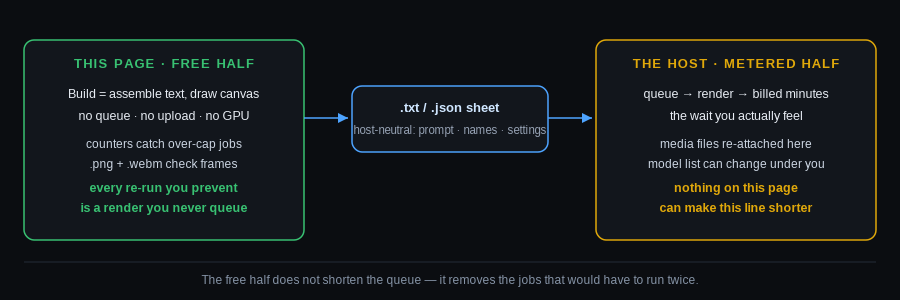
Generations take extra extra long now — what part of that wait can this free workflow actually remove?
Not the render wait itself, and it is worth being precise about why: this page is the half of the workflow where nothing renders. Pressing Build here does no queueing, no upload and no GPU work — it assembles text and draws a local preview, and the copy and download steps are instant. Every minute of a generation wait happens after the job leaves this page, inside the host you chose. What the free half removes is the wasted waits: the re-render you burned because the prompt still had a typo, the re-render because a first and last frame did not match, and the re-render because the job went over a reference cap the host enforces differently. All three are settled here for free — the counters catch over-cap reference sets before export, the local .png and the three-second .webm let you check the frame pair without spending a render, and the exported .txt is meant to be read once, line by line, before you queue anything. The honest split: queue a job when the sheet is final, not when the idea is roughly right. You cannot make a host's queue shorter from this page; you can make sure the only jobs you put into it are jobs that do not need to be run twice.
The output box is a live region — does it read the whole job sheet out loud every time I touch a setting?
Only after you have built, and then yes — whole sheet, every time, by design. The output area carries aria-live="polite", and the page does not edit it line by line: it replaces the entire text content with a freshly generated sheet whenever anything re-renders. Two behaviours follow from that. Before the first Build, the live region is silent no matter how much you type — the prompt input only updates the internal prompt value and the n/4000 counter, and the re-render function returns early until a build has happened, so the box keeps reading "No output yet." while you draft. After the first Build it becomes chatty: pressing a chip, dragging the duration slider, attaching a reference or deleting one each regenerates the sheet, and because the replacement is the whole block, a screen reader announces the complete document again rather than the one line that changed. A separate status element with its own role carries the short messages ("Output built…", the capped-files warning), so Build feedback and sheet re-announcement arrive as two different announcements. The useful consequence: what is read aloud is character-for-character what the .txt export contains, so listening to it is a way to proof-read the sheet without opening it — and if you would rather not hear the whole sheet on every chip press, the cheap workaround is to finish picking settings first and Build last, which is also the order this page recommends anyway.
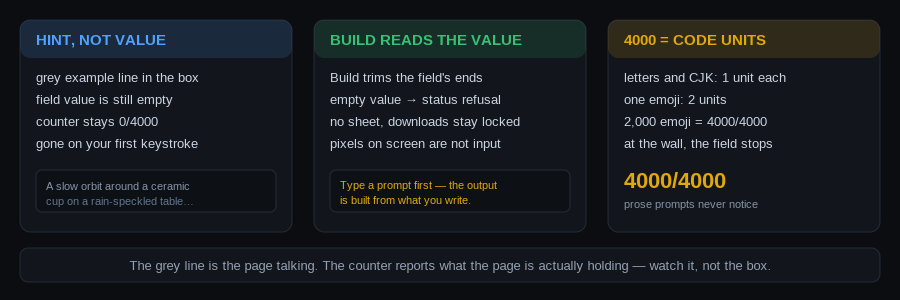
The prompt box already shows an example sentence — why does Build say I typed nothing?
Because that sentence is not yours. The example lives in the field as placeholder text — a hint painted by the page over an empty field, grey, and never part of the field's value. The tell is the counter beside the label: it still reads 0/4000 while the example is on screen, because the page is holding nothing of yours. Build reads the value, not the pixels on screen: it takes what is actually in the field, trims the whitespace off both ends, and if nothing is left it answers "Type a prompt first — the output is built from what you write." and stops there — the output box keeps whatever it showed, the four downloads stay locked, and no preview recording starts. The example is meant to be overwritten: click into the field and the grey line is gone on your first keystroke, and it never reappears once you have typed, even if you clear the field again. Use it as a shape for your own scene if it helps — a slow subject, a setting, a camera move, a texture — but treat it as the page talking, not as a draft you can Build. The one number that tells you the truth is the counter: 0/4000 means empty, whatever the box looks like.
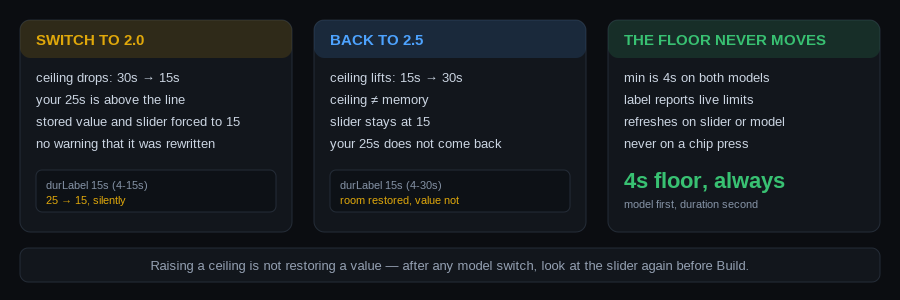
I set 25 seconds, switched the model to 2.0 and back to 2.5 — why is the slider stuck at 15?
Because the clamp is one-way and nothing restores your old value. Choosing Seedance 2.0 lowers the slider's ceiling to 15 seconds, and if the duration you had set sits above that, the builder drags both its stored value and the slider itself down to 15 in the moment you switch. Choosing Seedance 2.5 raises the ceiling back to 30 — but raising a ceiling is not the same as putting your number back: the slider stays where the clamp left it, so your 25 seconds does not return and nothing warns you that a setting was rewritten. The floor is the one part that never moves with the model: it is 4 seconds in both directions, which is why the label under the slider reads “(4-30s)” on 2.5 and “(4-15s)” on 2.0. That label only refreshes when you move the slider or change the model, so it always reports the limits that are live now, not the ones you started with. The safe order is the same one the resolution question on this page already gives: model first, then duration — and if you do switch models halfway through setup, look at the slider again before Build instead of trusting the number you left there.
I only changed the aspect ratio — why did every counter stay the same?
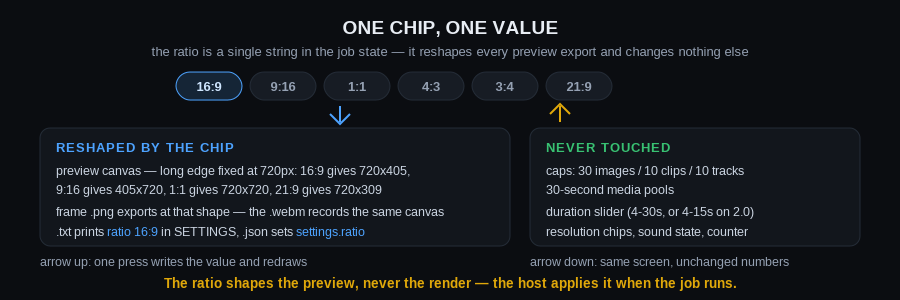
Because the ratio is one string in the job state and it is wired to the canvas and the exports, not to the pools. Press one of the six chips (16:9, 9:16, 1:1, 4:3, 3:4, 21:9) and the page stores that value and redraws the local preview at the new shape: the canvas long edge is fixed at 720 pixels, so 16:9 draws 720x405, 9:16 draws 405x720, 1:1 draws 720x720 and 21:9 draws 720x309. Nothing else is reachable from that chip — the 30-image, 10-clip and 10-track counters, the 30-second media pools, the duration slider range, the resolution buttons and the sound state are all separate values, which is exactly why the numbers under the labels do not move when you change the shape. What does move is every preview artifact: the frame .png exports at the ratio you picked, the preview .webm records that same canvas, the .txt SETTINGS line prints ratio 16:9 · resolution 720p · duration 10s · sound on, and the .json carries it as settings.ratio. Practical rule: pick the ratio for the platform you are handing the job to, read it back on the SETTINGS line after Build, and remember that the ratio shapes the preview here and is applied to the render by the host afterwards — this page never renders, so it cannot check whether the host honours an unusual shape like 21:9.
The sheet shows a duration and settings I never touched — where did those values come from?
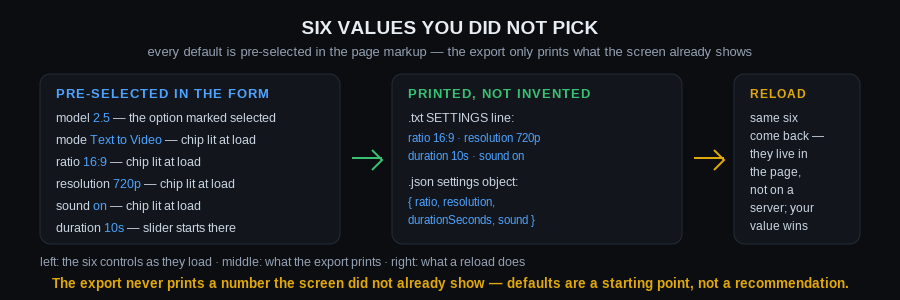
From the screen you are looking at. Six values load with the page: model 2.5 and mode Text to Video, ratio 16:9, resolution 720p, sound on, and a duration of 10 seconds. Each one is pre-selected in the form itself — the model option is marked selected, four chips carry their active state in the markup, and the slider simply starts at 10. The builder never invents a setting: what you see is what the export prints, in the SETTINGS line of the .txt and in the settings object of the .json. Nothing is fetched and nothing is remembered from an earlier visit — reload the page and the same six defaults come back, because they live in the page, not on a server. Treat them as the starting values of the sheet, not as recommended ones: change any of them before Build and the export follows your value, not the default.
Does Seedance 2.5 render 4K — is there a 4K setting on this builder?
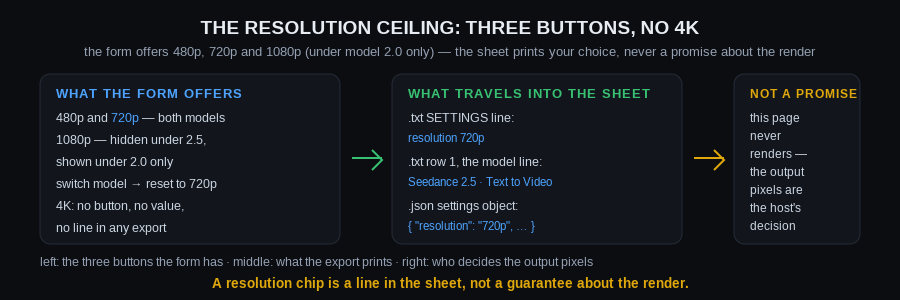
No. There is no 4K button anywhere on this page: the Resolution group offers exactly three choices — 480p and 720p under both models, plus 1080p, which is hidden while the model reads Seedance 2.5 and resets to 720p on any model switch (the mechanics are in the 1080p question above). Whatever is lit when you press Build is what travels: the .txt SETTINGS line prints resolution 720p with your actual choice, the .json carries the same value as settings.resolution, and nothing in either file contains a resolution the form never offered. The honest boundary is the same one this page keeps everywhere: it never renders, so what the host's output measures is the host's business — a "native 4K" line on someone else’s pricing page is that provider’s claim to check on the day you buy, not something this sheet can confirm or contradict. Practical rule: pick the resolution you intend to pay for, read the SETTINGS line back after Build, and treat the sheet as the record of your choice rather than a promise about the render’s pixel count.
The capped-files warning just vanished from the status line — did the skipped files sneak in after all?
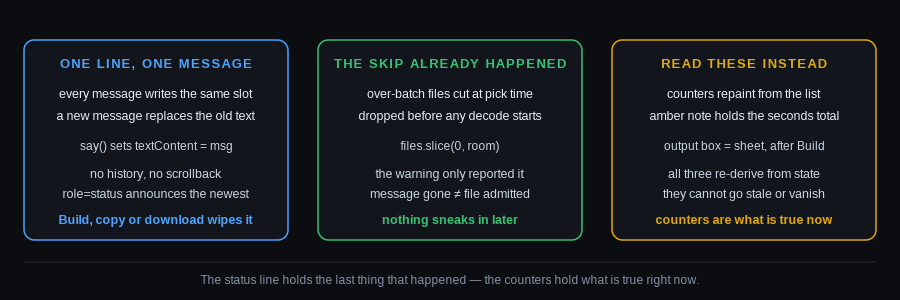
No. Two separate facts explain the disappearing message, and neither one is a file being admitted late. First: the status line holds exactly one message at a time. Every message the page has to show — the cap warning, "Output built…", "Prompt copied to the clipboard.", a download confirmation — is written into the same one-line element, and writing a new message replaces the entire line; there is no history, no scrollback and no second slot where the old warning could sit. So the moment you did anything else (pressed Build, copied, downloaded, picked another file) the warning was overwritten by whatever that action had to say. Second, and this is the part that matters for your job: the skip itself never depended on the message. Files beyond the room left are cut off your selection at the moment you pick them — the chooser hands over the whole batch, the page counts how much space the list has right then, and everything past that count is dropped before it is ever decoded. By the time you read the warning, the skipped files were already out; the message lingering or vanishing changes nothing about that. Where the durable record lives instead, in three places that do repaint from state: the counters beside each upload (0/30, 3/10) always read the list's true length, the note under the clip and track uploads holds the amber seconds total until it clears, and the output box after Build prints the sheet from the current lists. The status element carries the role status, so a screen reader announces each new message once — but only the newest one, same rule as your eyes. Practical rule: if you looked away and missed a status message, do not chase it — read the counters, because the status line is the last thing that happened while the counters are what is true right now.
Does this page still work if I browse with JavaScript turned off?
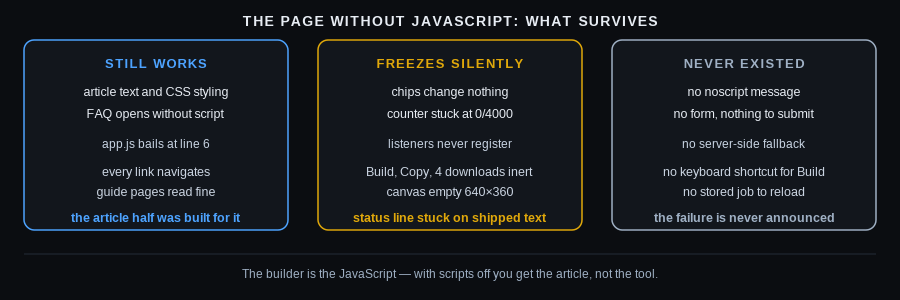
No — the builder is the JavaScript: with scripts blocked you keep the article and the FAQ, and lose every working control on the tool. What exactly dies, in the order you would meet it: the mode, ratio, resolution and sound chips are plain buttons with no form behind them (there is no form element anywhere on the page), so clicking or pressing them does nothing; the prompt field still accepts your typing, but the counter beside it stays at the "0/4000" printed in the HTML, because only a script ever updates it; Build output, Copy prompt and the four download buttons are wired by event listeners in the page's script, so they sit there inert — nothing builds, nothing copies, nothing downloads; the preview canvas keeps the empty 640×360 box the HTML declares instead of the 720×405 composite, since only script sizes and paints it; and the status line stays on its shipped sentence, "Fill the left side, then press Build output.", forever. The failure is silent too: the page ships no noscript message, so nothing tells you scripts are off. What survives is exactly what never needed script: the stylesheet loads normally, so panels, type and spacing read as designed; the FAQ disclosures are native HTML elements that open with a tap, click or keyboard on their own; and every link — topbar, footer nav, the cross-links between guides — is plain markup. The guide pages prove the split from the other side: their script exits immediately when it finds no prompt field, so they were readable with or without it. Practical rule: if the tool ever looks dead, check the browser's script-blocking control first — the article half of this site was built to survive with scripts off; the builder half never was.
I want a TikTok-style dance routine — do I write out every move, name a dance style, or hand over a reference video?
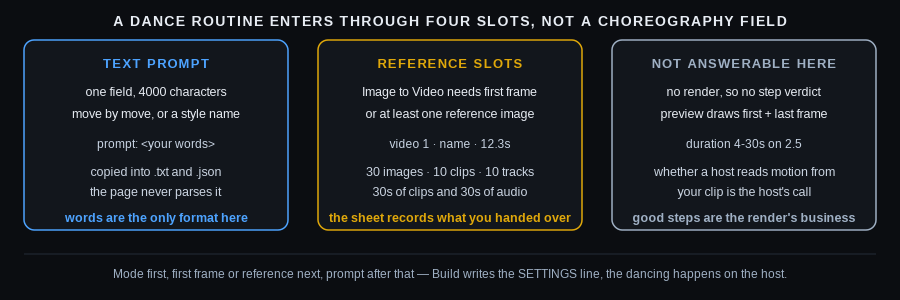
Whichever route you take, this page handles it the same way: there is no choreography field anywhere on the sheet, so your routine has to arrive through one of the four slots the builder already has. Write the moves out and the prompt box carries them as text — it holds up to 4000 characters, comfortably several beats for an 8-to-12-second clip, but every count, arm line and transition has to be words, because the builder has nowhere else to put them. Name a style in one sentence instead and the same box takes it unchanged: the page never parses either version, it copies your text into the prompt field of the .txt and the .json exactly as typed. If your route is a reference clip, switch to Image to Video — that mode refuses to Build without a first frame or at least one reference image — and put the clip in the video pool: ten clips, 30 seconds in total, printed in the sheet as video 1 · name · 12.3s so whoever runs it knows what you handed over. Appearance references go alongside: 30 images, listed by filename. What the sheet cannot tell you is whether the steps will look good — this page never renders, the preview draws only your first and last frame rather than any clip, and whether a host reads movement out of your reference or invents the routine from your words is the host's side of the line, not a claim this builder can make or check. Practical order, same as everywhere on this site: mode first, first frame or reference next, prompt after that, duration last (4 to 30 seconds under 2.5, so 8–12 seconds sits inside the range), then Build and read the SETTINGS line back to confirm the job is what you meant to send.
My render already came back 16:9 — can I turn that clip into a TikTok vertical, or does it have to be rendered again?
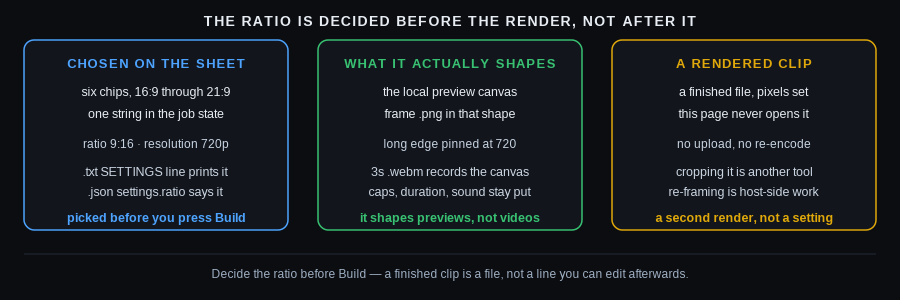
Neither happens on this page, and the honest reason is that this page never sees the clip. The ratio is a decision you make on the sheet, before Build: six chips carry it (16:9, 9:16, 1:1, 4:3, 3:4, 21:9), the chip writes one string into the job, 9:16 draws the local preview at 405×720 with the long edge pinned at 720, and Build prints ratio 16:9 in the SETTINGS line of the .txt and settings.ratio in the .json. What leaves here afterwards is text plus two local previews — a job sheet, a JSON spec, a still .png and a 3-second .webm recording of the canvas — and none of those is a video file, so there is nothing on this side to crop, reframe or re-encode. A rendered clip is a finished file sitting on your machine or your host's, and changing its shape after the fact belongs to whatever tool produced it; whether your host offers a re-crop or a re-frame, this site neither performs it nor reports on it. What you can do before the render exists: build two sheets from the same prompt with exactly one line changed — ratio 16:9 on one, ratio 9:16 on the other — read each SETTINGS line back, and run both only if you genuinely need both shapes. Practical rule: pick the chip for the platform you intend to publish on, confirm that line after Build, and let the render happen once.
Can I set the duration to a fraction like 7.5 seconds?
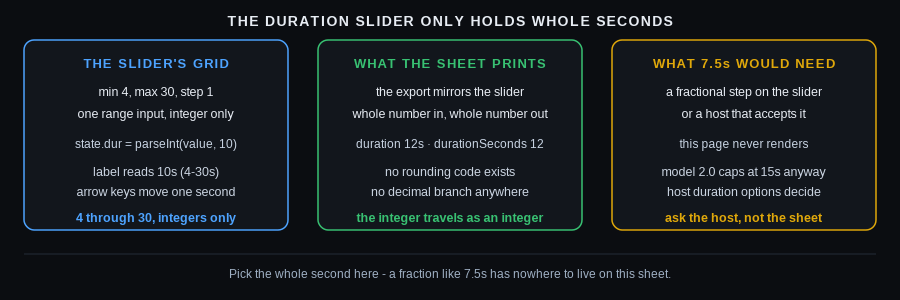
No. The duration control is one range slider declared with min="4" max="30" step="1" (index.html:122), so it only ever holds whole seconds between 4 and 30, and the script takes that value straight in with parseInt(value, 10) (app.js:87) - there is no rounding step and no decimal branch anywhere in the file. The label beside it prints 10s (4-30s) and refreshes as you drag or switch models (app.js:88, app.js:535), and the export simply mirrors what the slider held: the .txt SETTINGS line reads duration 12s and the .json carries "durationSeconds": 12 (app.js:279, app.js:299) - whole numbers in, whole numbers out. Two limits worth keeping apart: switching the model to 2.0 clamps the slider to a 15-second ceiling (app.js:96-97), which is a cap rather than a step, and whether a host would accept a fractional duration at all is the host's business, since this page never renders and a 7.5-second request has nowhere to live on this sheet. Practical rule: pick the whole second closest to what you want; if your target really is 7.5, that question belongs to the host's duration options, not to this builder.
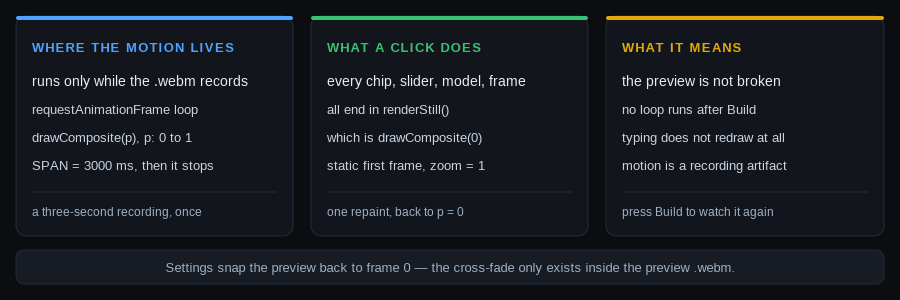
After Build, why does the preview snap back to the first frame every time I click a chip or drag the duration slider?
Because the cross-fade only ever exists while the preview .webm is recording, and every control you touch repaints a single still frame at the start of the fade. The animation is one loop inside renderWebm(): it records t0, steps a p from 0 to 1 over SPAN = 3000 milliseconds with requestAnimationFrame, draws drawComposite(p) each step and stops at p < 1 === false (app.js:518-526) — when it stops, the canvas is simply left holding the last frame it drew, which with both frames set is the last frame at full opacity. Nothing keeps looping after Build. Now the snap itself: every setting path ends in the same one-line redraw, renderStill(), which is literally drawComposite(0) + syncOut() (app.js:397), and p = 0 is the static first frame at zoom 1. That call fires from the shared chip handler after any mode, ratio, resolution or sound click (app.js:61-70), from the duration slider on every input (app.js:89), from the model drop-down (app.js:105), from loading a first or last frame (app.js:179), and from sizeCanvas() whenever the ratio changes the canvas size (app.js:315-322). So the jump to frame 0 is a still being repainted, not the preview failing — the two behaviours to keep straight are that controls redraw instantly and typing in the prompt field does not redraw at all (its listener only stores the text and moves the counter, app.js:81-84), which is why the canvas text card can look one edit behind while the controls respond. Practical rule: to see the fade again, press Build, which restarts the three-second recording, or open the .webm you already downloaded — this canvas never plays on a loop, and none of it is your render.
My prompt got worse when I made it more cinematic — what does this builder do to my wording?
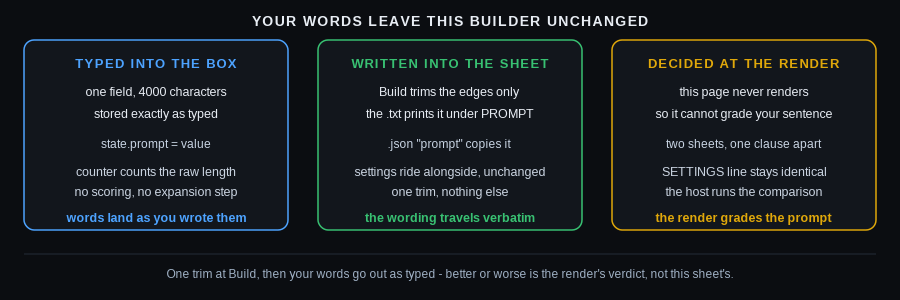
Nothing to it, which is the answer: this builder never rewrites, scores or expands your wording, so a plainer prompt and a more cinematic one leave this sheet in exactly the state they were typed in. The path your words take is short and fully visible. The input listener stores the raw string and moves the counter (app.js:81-84); Build trims the surrounding whitespace and touches nothing else (app.js:415); the .txt prints the text verbatim under PROMPT (app.js:259-260); the .json copies it unchanged into its prompt field (app.js:288). There is no prompt-expansion toggle, no rewriting step and no scoring pass anywhere in the script — the only operation that ever alters your text is that one trim, and an all-whitespace prompt is refused outright ("Type a prompt first — the output is built from what you write.", app.js:416-419). Everything else the export carries is settings, not wording: model, mode, ratio, resolution, duration, sound and the named references. Whether a word like "cinematic" makes the final render drift is decided where the render happens — this page never sees an output, so it can neither cause that drift nor grade your sentence. Practical rule: building here costs nothing, so keep two sheets that differ in exactly one clause — plain wording on one, cinematic wording on the other — read both SETTINGS lines back to confirm they are otherwise identical, and let the single render decide which one you keep.
I want the face from my character references swapped onto a reference video while keeping that video's dialogue (1 video + 3 images) — what does this workflow do with a job like that?
The request is a real one, in those words, from r/Seedance_AI on 2026-11-22: "Seedance 2.5: how do I get it to swap the face from my character refs and keep the dialogue when copying a reference video (1 video + 3 images)?" with the follow-up in the body, "the face never changes… Does anyone have a prompt format or template that gets it to replace the face too?" (https://www.reddit.com/r/Seedance_AI/comments/1y2libp/). What this builder does with that job is exactly its half of it, and the half has four moving parts. One: the shape fits as it stands — three character images go into the 30-image pool and the one reference video goes into the 10-clip pool, where it is listed with the browser's probed length (video 1 · name.mp4 · 8.4s), and Image to Video passes its gate because at least one reference image is attached (app.js:420-423). Two: the export carries no roles. Every attachment is a filename line in REFERENCES and a bare name (plus seconds for clips) in the .json arrays (app.js:263-273, 289-293) — there is no "this is the character", no "copy this clip's face", no weight, so both assignments have to be written into the prompt as clauses naming image 1, image 2, image 3 and video 1 the way you want them read. Three: keeping the dialogue is two separate settings, not one — the language and the lines belong in the prompt text (the export adds nothing), and the Sound chip must read sound on on the SETTINGS line, because a job exported with sound off tells the host to produce no audio at all; see the wrong-language answer above for the same rule stated for speech. Four: the swap itself is not on this page — nothing here opens your images to look at a face, and the preview draws only the first and last frame, so a blank-looking preview says nothing about whether the identity moved. The test is the one this page already runs: build two sheets that differ in a single clause (the swap sentence), keep the same three images and the same clip in the same order, and let the two renders name whether the wording, or the reference set, is what failed. Practical order: Image to Video, three images plus the clip attached, prompt clause per file, sound on, Build, then read REFERENCES and the SETTINGS line back before you take it anywhere.
Next step
Do the free half now: open the builder, run the checklist above, export the job, and only then go and find seconds to spend. For what a trial actually buys you, read the free trial page; for what credits turn into, read the 9,900-credit page.