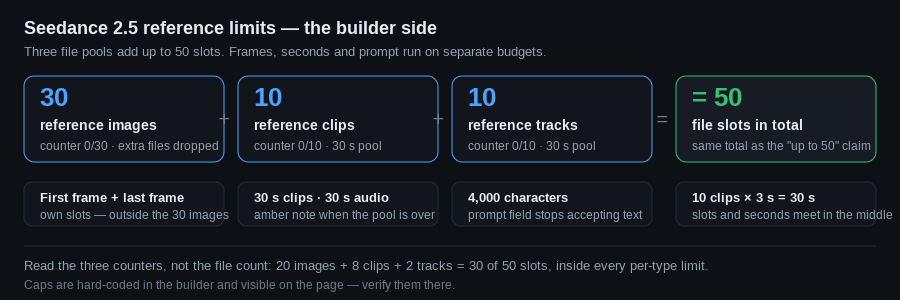
Short answer: a Seedance 2.5 job takes 30 reference images, 10 reference clips and 10 reference tracks — 50 file slots in total — plus one first frame and one last frame that sit outside that count. Video and audio are each capped at 30 seconds in total, and the prompt stops at 4,000 characters. Fill the slots by role, not by count.
Where the two numbers come from
You will meet two figures on the same question. One is printed by a tool you can operate; the other is printed by pages describing the model. They are not in conflict, but they count different things:
| Source of the number | The figure it prints | What it counts | What it leaves out |
|---|---|---|---|
| The builder on this site | 30 images + 10 clips + 10 tracks | Files, in three upload boxes, each with its own live counter | First frame, last frame, prompt text and the seconds totals |
| Reference guides for the model | Up to 50 inputs | A mixed bag: images, video, audio and written text | No per-type ceiling, no seconds ceiling |
| Model-launch posts on Reddit | Up to 50 references, 30-second takes | The same headline figure, repeated without a breakdown | How the 50 split across file types |
Now the part nobody prints. Add up what the builder allows:
The two routes land on the same total of 50 — one counted per file type, one counted as a single mixed allowance. That equality is arithmetic on published caps, not a claim that they are the same 50: the guides' 50 includes written text, while here text lives in its own 4,000-character prompt field and never touches the file slots. Practical consequence: stop counting files and start reading the three counters. A job that uses 20 images, 8 clips and 2 tracks is at 30 of the 50 slots and fully inside every per-type limit, while a job at 30 images alone is already at its image ceiling with two-thirds of the slots unused.
What the builder enforces, line by line
Each limit below is a hard-coded constant, so the failure behaviour is fixed and reproducible. Knowing what happens when you cross a line tells you which limit you actually hit:
| Limit | Where you see it | What happens when you cross it |
|---|---|---|
| 30 reference images | Counter above the thumbnails, 0/30 | Files past the free slots are dropped; the status line reads Reference images capped at 30. N skipped. |
| 10 reference clips | Counter on the video box, 0/10 | Same drop behaviour: Capped at 10 files. N skipped. |
| 10 reference tracks | Counter on the audio box, 0/10 | Same drop behaviour, counted per box, not across the job |
| 30 s of clips in total | Note under the upload boxes | Note turns amber and appends the running total, e.g. video references total 34.0s |
| 30 s of audio in total | The same note | Amber again, with the audio total named the same way |
| 4,000 characters of prompt | Counter beside the prompt | The field stops accepting characters; the counter reads 4000/4000 |
| First frame and last frame | Two single-choice slots | They never consume image slots — they are separate fields and the export lists them on their own lines |
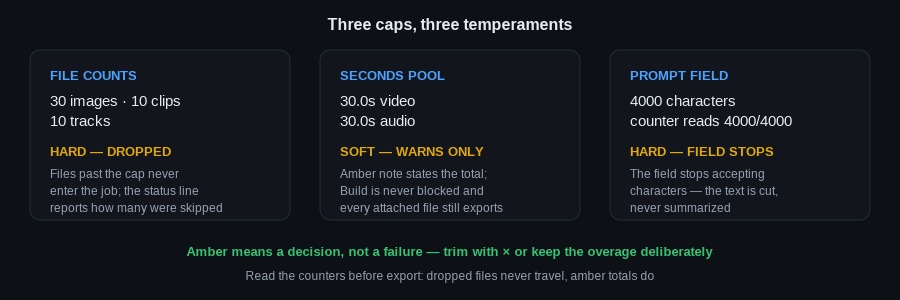
Two behaviours are worth singling out. The image and clip caps are enforced by silently discarding whatever does not fit, so a drag-and-drop of 40 photos gives you 30 and a message — not an error. The seconds caps are enforced by warning only: nothing is removed, which means an over-limit job can still be built and exported, and the overrun only shows in the amber note if you look at it.
The seconds ceiling is the real budget
"10 clips" sounds like ten full clips. It is not. Clips share one 30-second pool, so the slot count and the seconds ceiling meet in the middle — divide the pool by the slots you plan to use:
| Clips you attach | Average clip length that fits the 30 s pool | What that buys |
|---|---|---|
| 1 | up to 30 s | One full-length motion reference for a maximum-length job |
| 2 | 15 s each | Two movements, or one movement plus one camera path |
| 3 | 10 s each | Start, middle and end beats of the shot |
| 4 | 7.5 s each | Scene beats with short transitions |
| 5 | 6 s each | Five gestures — the practical ceiling for varied motion |
| 10 | 3 s each | All slots used, all clips reduced to snippets |
The audio pool works the same way: ten tracks at three seconds each, or one 30-second ambience bed. If you attach a 20-second motion reference, the remaining nine clip slots share ten seconds between them. Pick the pool split before you upload — the builder shows the running total under the boxes, so you can see the budget drain as you add files.
Spending the slots: three budgets that fit
Nobody needs 50 files on the first attempt. These are three allocations, each written for a job type, each inside both the per-type caps and the seconds pools (clip column assumes the 30 s pool is divided across the clips listed):
| Job type | Images | Clips | Tracks | Slots used | What each group does |
|---|---|---|---|---|---|
| Character scene | 10 | 5 | 5 | 20 of 50 | Identity, outfit and location stills; one motion clip per beat; ambience plus a timing bed |
| Product ad | 8 | 6 | 6 | 20 of 50 | Front, side and detail stills; one orbit clip; room tone, hit and logo sting |
| Style-led short | 6 | 8 | 6 | 20 of 50 | Two style frames plus location; camera moves as clips; music and foley |
| Full load | 30 | 10 | 10 | 50 of 50 | Only when you can name a job for every single file in the prompt |
The last row is the trap: 50 of 50 is a ceiling, not a target. A file you cannot justify in one prompt clause is a file that competes with the ones you can. Add a reference only when it removes an ambiguity the current set still has — that rule keeps the set debuggable when a render comes back wrong.
Before you press Build output
- Image counter at or below 30, clip counter at or below 10, track counter at or below 10.
- Note under the uploads is not amber — clip seconds total ≤ 30, audio seconds total ≤ 30.
- Prompt counter below 4000 characters, so nothing was cut off at the field.
- First frame and last frame are chosen on purpose, and you know they sit outside the 30-image count.
- Every attached file has a role you can state in one prompt clause.
- One primary file per role — no second image quietly contradicting the first.
- Clip lengths divided across the pool before upload, not discovered afterwards in the amber note.
- Export as .txt and check that the REFERENCES list comes out in the same order your prompt assigns roles.
Reference limits FAQ
Which caps does the builder enforce — images, clips, audio?
Three file caps and two seconds caps: 30 reference images, 10 reference clips and 10 reference tracks, plus 30 seconds of clips in total and 30 seconds of audio in total. The prompt has its own ceiling of 4,000 characters, and first frame plus last frame are separate single slots that do not use the image cap. Each upload box shows its own live counter, so you can read the state of all three without counting files.
How many seconds of reference video can one job carry?
Thirty seconds of clips in total, and thirty seconds of audio in total — two separate pools, not one shared one. The pools are independent of the slot counts, so 10 clips can be ten 3-second snippets or one 30-second reference; the builder shows the running total under each upload box and turns the note amber the moment it passes 30.0s. Split the pool before you attach anything: a single 20-second motion reference leaves ten seconds for the other nine clip slots.
Does the first frame count towards the 30 images?
No. The first frame and the last frame have their own single-choice slots and their own state, and neither is added to the 30-image counter — you can attach 30 reference images and still set both frames. The export treats them as separate lines as well: images appear in the REFERENCES list, the frames get their own FIRST FRAME and LAST FRAME entries (or their own fields in the .json).
Does a two-character dialog shot need multiple voice reference audio clips?
The job shape allows it: one job carries up to 10 audio tracks, each listed with its own length, all sharing the 30-second audio pool — two voice clips fit as long as together they stay under 30.0s, and the note under the upload box turns amber the moment they don't. What the export cannot do is introduce them: the .txt and .json only carry each track's filename and seconds, so nothing in the file tells the model "this is speaker one". Name each voice's job in the prompt itself — which track is which character — and keep the dialog inside the duration you set. If the two voices blur, change the prompt's speaker assignments first and rerun once; adding an eleventh track is not the fix, because ten is the cap.
Does deleting a reference bring the counter back down?
Yes — removal is exact, not a re-count. The × on a thumbnail and the × in the list both splice that one entry out of the job and repaint, so the live counters read the new total immediately: image 12/30 becomes 11/30 the moment you delete, and the same holds for the 10-clip and 10-track counters. Two things happen on the way out that you cannot see but can rely on: the removed file's local object URL is released, and — for clips and tracks — the seconds pool is recalculated, which means deleting the 20-second clip that pushed the note into amber brings the note back to its normal grey as soon as the remaining total is under 30.0s. Deleting is therefore the correct fix for an over-cap warning; you never have to clear the whole reference set to get back under the caps.
Can I add the same file twice?
Yes, and it will count twice — the builder never checks file names. Each upload box clears its own picker after every selection, so the same file can be chosen again immediately, and the job state stores each attachment as its own entry rather than de-duplicating by name. A twice-added 8-second clip therefore appears as two lines in the export, takes two of your 10 clip slots, and puts 16 seconds into the 30-second pool — the amber note will say so. Duplicate names in the export are indistinguishable ("audio 1 · bed.mp3" and "audio 2 · bed.mp3" carry no marker telling them apart), so if the render comes back with doubled audio or doubled motion, check the reference list for the same name twice before blaming the model. Re-adding a file is only correct when you mean it — for example the same style frame deliberately pinned beside a different character reference.
How do you add voices to your Seedance characters?
The way people ask it is "do you use apps like ElevenLabs for custom voices, or the random voices Seedance provides?" — so separate the two halves. On this site there is no voice generation at all: the builder accepts up to 10 audio track files, keeps their names and measured lengths, and puts them in the export. What it does not do is synthesize a voice, sync lips, or mark up who is speaking — the .txt lists "audio 1 · clip.wav · 4.2s" and nothing more. Custom voices therefore travel as files: record or synthesize them elsewhere, attach them here, and then write the assignment into the prompt itself — which track belongs to which character — because that is the only place the job can carry it. If you attach nothing, you are relying entirely on whatever the host's model does with an unassigned audio slot. One practical limit governs all of it: 10 tracks and 30 seconds of audio in total, so two voices in a dialog must fit inside that pool before anything else does.
If I turn sound off, what changes in the export?
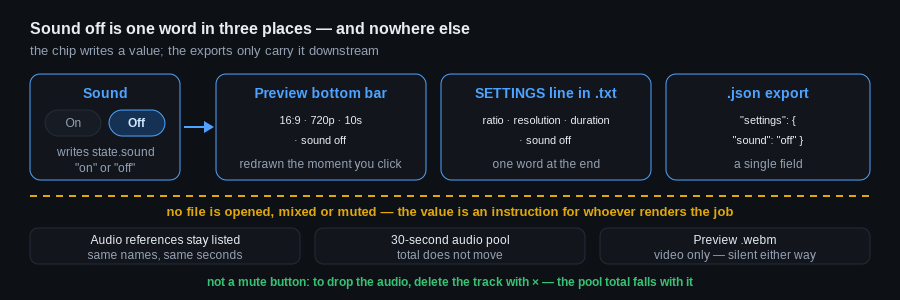
One word, in two files — and nothing else. The Sound control is a pair of chips writing sound on or sound off into the job state; when you export, that value appears as the last item of the SETTINGS line in the .txt (ratio 16:9 · resolution 720p · duration 10s · sound off) and as the single field settings.sound in the .json. It also rewrites the preview's bottom bar, so the local frame reads "sound off" too. What it does not do is touch your audio: every attached track stays in the REFERENCES list with its own file name and measured seconds, the 30-second audio pool total is unchanged, and no file is opened, mixed or muted — the page only ever reads a track's metadata to display its length. It changes no other setting either: same ratio, same resolution, same duration, same caps. So "sound off" is an instruction line for whoever renders the job downstream, not a mute button here — if you want the audio gone from the job, delete the tracks with their × (the pool total drops with them), and note that the preview .webm carries no audio either way, because it records the canvas as video only.
The render slipped a faint music bed under my shot — how do I keep only the audio I actually asked for?
The short version: this sheet has exactly three places audio can be described, and none of them is a mixer. First the Sound chip — one word, sound on or sound off, printed at the end of the SETTINGS line and as settings.sound, which is an instruction to whoever renders rather than a mute button here. Second the track list itself: up to 10 audio files with their names and measured lengths (audio 1 · amb.wav · 4.2s), capped at 30 seconds in total, listed so the renderer knows what you handed over. Third the prompt, which is where the actual "only these sounds, and nothing else" wording has to live, because it is the only free-text slot on the job. What the export does not carry is any audio control beyond those three: no volume, no per-track role, no fade, no "no music" flag, nothing that tells the model which track is dialogue and which is ambience — the page reads a track's duration to display it and never opens the file. So a music bed the model invents is render-side behaviour, not a field this builder failed to set, and stripping it out afterwards is an editing decision made in your editor, not a setting you can add here. Practical order: state the intended sound in the prompt, attach only the tracks you want heard, use sound off when the shot should be silent, then judge the take — and remember the local .webm preview records the canvas as video only, so this page cannot let you hear the difference before the render.
If my clips and tracks add up to more than 30 seconds, can I still build and export?
Yes — the seconds pool is the one cap in this builder that only warns. The three limits have three different temperaments: the file counts (30 images, 10 clips, 10 tracks) are hard — files past the cap are dropped before they ever enter the job, with the status line reporting how many were skipped; the 4000-character prompt field is hard in a different way — once the counter reads 4000/4000 the field stops accepting characters; but the 30-second video pool and 30-second audio pool are soft. When your attached clips total over 30.0 seconds, the note under the upload area turns amber and states the total (for example "video references total 34.0s"), and that is all it does — the Build handler never checks the pool, so the job builds, the export lists every clip with its full length, and the amber total travels with it as a warning to whoever renders. Practical rule: amber means a decision, not a failure — trim with the × until the note clears if the host bills by the second, or keep the overage deliberately and say in the prompt which clips matter most.
Can I attach reference images in every mode, and where do they go once they're attached?
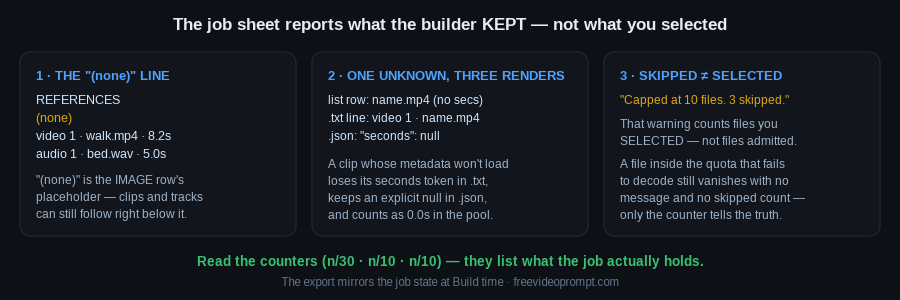
Yes — in both Text to Video and Image to Video, and they never travel inside the prompt text. The prompt field is for words only: its counter counts characters of what you type, and pasting an image reference there does nothing. References ride beside the prompt as their own lists. In the exported .txt they appear as numbered lines under REFERENCES — image 1 · name.jpg, then each clip and track with the duration the browser probed from its metadata (or no seconds if the file would not report one); in the exported .json they appear under references as an array of image names and name-plus-seconds objects for video and audio. First and last frame are separate one-file slots outside the 30-image count and export on their own FIRST FRAME and LAST FRAME lines. The only mode-dependent gate is at Build time: Text to Video needs a prompt, Image to Video additionally needs a first frame or at least one reference image — so if you are looking for a "paste extra images" box during a render, that is the wrong layer: this builder hands the render host a filename list, and the host is where the pixels get attached again.
If I attach clips and tracks but no images, why does the export say "(none)" under REFERENCES?
Because "(none)" is a placeholder for the image group, not a verdict on the whole job. The exporter writes the REFERENCES header, then the image lines — or, when there are no images, a single line reading (none) — and after that it lists every attached clip and track unconditionally. So a job with zero images, three clips and two tracks reads "REFERENCES / (none) / video 1 · … / video 2 · … / audio 1 · …", and the "(none)" in the middle means exactly one thing: no reference images. The .json export has no such word — the same state appears as an empty references.images array beside full videos and audio arrays — which is the cleaner read when in doubt. Practical rule: never parse the export by eye alone; the three live counters (n/30, n/10, n/10) list what the job actually holds, and the "(none)" line changes nothing about them. It matters most in Image to Video, where images (or a first frame) are required to build at all: a sheet showing "(none)" with clips below it can only have come from Text to Video, so if a downstream host rejects the job for missing images, the sheet itself tells you which slot to fill.
If I switch between Text to Video and Image to Video, do my references and settings survive?
Yes — the mode switch is the smallest control on the page. Clicking the other mode chip writes exactly one value, the mode itself; the model, ratio, resolution, duration, sound chips, every attached image, clip and track, and both frame slots stay exactly as you left them, in the same order, with the same numbers. What does change is in three places only: the first line of the exported .txt, the mode field of the .json, and the label drawn on the top strip of the local preview. The SETTINGS line does not mention the mode at all, and the download file names never did. The one behavioural difference is at Build time, and it explains most of the confusion: Text to Video only needs a prompt, while Image to Video additionally needs a first frame or at least one reference image — switch to Image to Video with an empty pair of frame slots and no references, and Build answers with "Image to Video needs an image: add a first frame or a reference image." That is a gate on building, not a reset: press back to Text to Video (or attach the image) and everything you set is still there, unchanged.
Should I build one 30-second job, or split it into multiple 15 or 20-second generations?
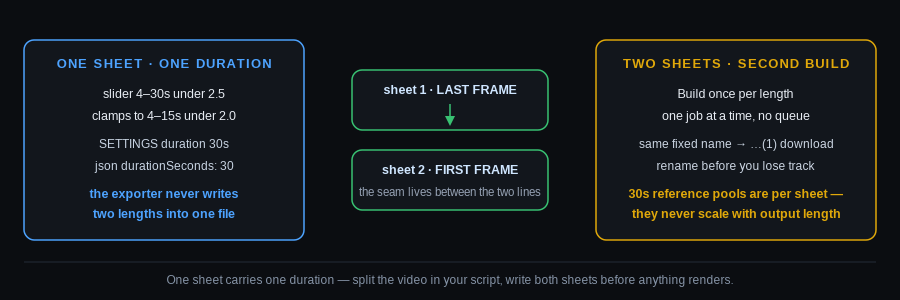
One Build makes one sheet with exactly one duration in it, so this page can only show you what the split looks like on paper — whether a single long take or several short ones renders better is a question for the host that runs the model. What is checkable here, in order. The sheet holds one number: the slider reads 4-30s under Seedance 2.5 (and clamps to 4-15s under 2.0, label included), and that single value is written once as duration 20s in the SETTINGS line and once as settings.durationSeconds in the .json — the exporter never mixes two lengths into one document. Choosing a longer output does not relax anything else: the 30-second video pool and 30-second audio pool are counted from your attachments per sheet, independent of the output length, so a 30s job does not earn you 60s of references and a 15s job does not halve them. Splitting means pressing Build again for a second sheet (the builder runs one job at a time), and if the pieces must join later, the seam lives between two lines: the LAST FRAME of the first sheet and the FIRST FRAME of the second — that hand-off is the first and last frame guide's subject, not this page's. Practical rule: decide the split from your script, write both sheets before anything renders, and change only the duration line between the two test renders — one variable per run is the only comparison that ends with an answer.
Is there a minimum length for a reference clip — does this builder check it?
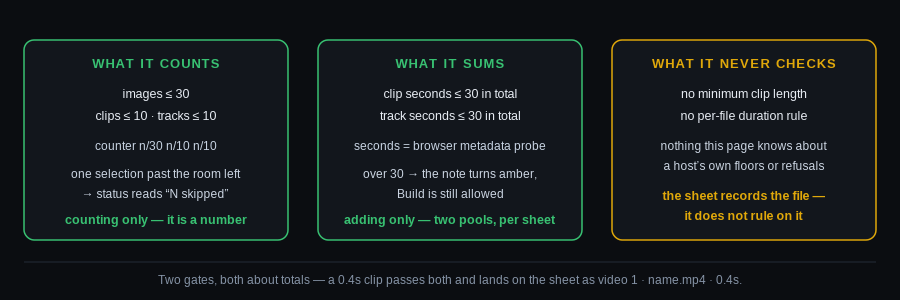
No, and that is worth knowing before you attach anything. The builder runs two kinds of arithmetic on a reference set and nothing else. It counts files: 30 images, 10 clips, 10 tracks, and if one selection runs past the room left it says how many were skipped in that selection. It sums seconds: clip seconds and track seconds are added up separately from the probed durations, and only when a total passes 30 does the note under the upload areas turn amber — and even then Build stays available. Nowhere in there is a single file measured against a floor. A 0.4-second clip passes both gates, is listed like any other, and is written to the sheet as video 1 · name.mp4 · 0.4s, with the same probed seconds in the .json; the seconds come from the browser reading the file's metadata, not from anything this page approved. If a host wants every clip to be at least two seconds long, or refuses a shorter one, that is that host's rule: the sheet carries your filename and its probed length, not a verdict, so trim the clip and build a second sheet rather than expecting this page to warn you. The only two things here that will stop you are the two numbers this builder owns — how many files, and how many seconds in total.
I picked five clips at once — does the REFERENCES list keep the order I picked them in?
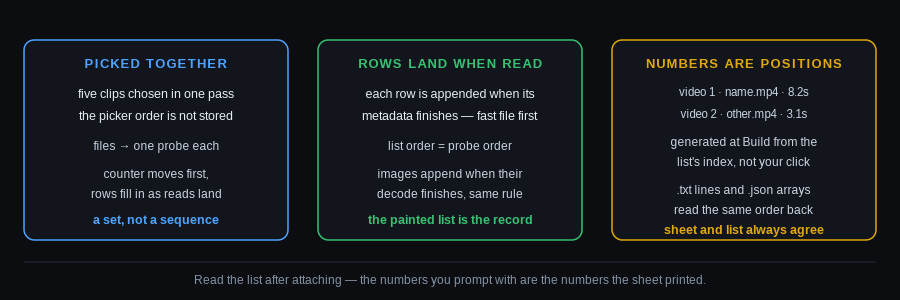
Not necessarily the order you clicked them, and the export numbers will tell you the truth either way. Each attached clip or track is added from inside its own metadata-probe callback: the page starts one probe per file and appends a row only when that file's duration has been read, so if the third file you selected reports its metadata first, it lands in the list first. The list you see immediately after picking is drawn once before any probe has finished (the counter moves first, the rows fill in as each read completes), which is why the rows can appear in a different sequence than the file picker showed. Images behave the same way — each one is appended when its decode finishes, and a file that fails to decode never arrives at all. What matters is the second half of the fact: the numbers in the export are not your click order, they are positions. video 1, video 2, image 1 and so on are generated at Build time from the list's current index, and the .json's arrays follow the same index, so the sheet and the list always agree with each other even when neither agrees with your memory of the click. Practical rule: treat the painted list as the order of record — read it after attaching, and if a specific sequence matters for the prompt, delete and re-add until the list reads the way you want; then reference the numbers the sheet actually printed, not the numbers you think you selected.
Does this builder check what kind of file I am uploading before it accepts it?
No — the file type is never verified anywhere in this page, and knowing which of the three failure shapes you are about to get makes the behaviour legible instead of broken. Start with the picker: the upload areas carry an accept filter (images on the reference-image area, media on the clip and track areas), but that attribute only pre-filters the file dialog — it is a convenience for the picker, not a gate, and once a file is chosen nothing in the page reads its type or extension to approve it. What happens next depends on which of the two loaders the file lands in. Images go through a decode: a file the browser cannot decode never enters the list at all, the counter does not move, and — unlike the frame slots, which print a warning — the reference-image path fails in silence, so an image that "did nothing" was almost certainly a decode failure rather than a cap. Clips and tracks go through a metadata probe instead: the element the probe uses is chosen from the file's declared type prefix, and if the probe cannot read a duration the row is still added to the list, with no seconds on it — so an unreadable clip is visible in the list and on the exported sheet, just without a probed length. Neither path checks that a clip really is video or a track really is audio; the sheet records the filename you gave it, not a verdict about its contents. Practical rule: if a file seems to vanish, it was the image decode; if it appears with no seconds, it was the media probe — and in both cases the fix is a different file, not a different setting, because the only checks this builder owns are the ones this page already lists: how many files per pool, and how many seconds in total.
I pasted a run of emoji and the counter burned twice as fast — what is the 4000 actually counting?
Browser code units, not the symbols you see. The counter reports the JavaScript length of the field's value, and in JavaScript most letters — Latin, Chinese, the punctuation around them — are one code unit each, while emoji, flags and a slice of rarer characters are written as a pair of units. One 😀 moves the counter by two, so 2,000 emoji read 4000/4000 and the field stops there. The ceiling itself is enforced in the same units: the prompt field is hard-capped at 4,000, and once the counter shows 4000/4000 it refuses further typed characters, and a paste longer than the room left is cut to fit the moment it lands. Practical rule: if your prompt is ordinary English or Chinese prose — which almost every prompt is — the distinction never bites and the counter behaves like an honest character count. It only matters when the prompt is heavy in emoji or symbols, where you should count on roughly half as many visible symbols as the number on the counter. And in every case, nothing disappears behind the wall: whatever sits in the box at 4000/4000 is exactly what the .txt and the .json export, word for word.
Someone asked "how many references are enough to create locations well" — can this builder answer that?
Not the "enough" part, and it is worth being precise about where the line sits. Whether one view of a place or three from different angles convinces the model is a question about the renderer, and this page never renders anything, so any number it gave you would be a guess. What the builder can settle is everything around that decision. It will carry up to 30 reference images in one job, it counts them down in real time, and it fails loudly the moment you try to attach more than the room left. It prints every attached image by its file name and position in the sheet, so the group of shots you gathered for one location stays visible as a group you can count and reorder before you commit. And it lets you bring ten short clips and ten tracks along, so "this is what the plaza sounds like" can travel as audio rather than as a paragraph of prompt. The practical split: gather the angles you think the shot needs, name the files so the location is recognizable in the list, attach them, and let the counter tell you what fits. Whether the model is convinced is decided by the render, not by the sheet — but a job that carried its references in cleanly is one variable you have removed before you spend anything.
A client logo with a double letter keeps coming back with one letter missing — what can this builder do about it?
It is a real, repeated report: a poster on r/Seedance_AI wrote, "I am having an issue where a clients logo has double S letter in mid word and SD2.5 always seems to drop one of them," describing repeating LED banners carrying the same text-only logo (community-2026-10-30, https://www.reddit.com/r/Seedance_AI/comments/1xikg7p/). Being precise about this page first: it never renders, so it cannot tell you whether a given take will drop the glyph — that verdict belongs to the model on the host you run it on. What it can do is remove every avoidable variable on your side of the hand-off, in three moves. One: attach the logo file itself as one of the 30 reference images — a picture of the mark carries both letters regardless of how the word is spelled, and the sheet prints it by filename under REFERENCES and in the .json images array, so the artwork travels with the job instead of your description of it. Two: write the exact spelling into the prompt once, spelled out letter by letter (the field gives you 4,000 code units, and Build trims nothing but the whitespace at the two ends, so the .txt PROMPT block and the .json prompt field are your text word for word). Three: if the logo has to be legible in the opening frame, set it as the first frame — that slot is separate from the 30 images and exports as its own FIRST FRAME line, so the render starts from your file rather than from a guess. Then read the exported sheet line by line before you queue anything: if the sheet is right and the render still drops a letter, the remaining variable is on the host side, and the same sheet can be pasted into a different host unchanged.
I picked files twice in a row and the counter now reads 34/30 — is that real, and what do I do with it?
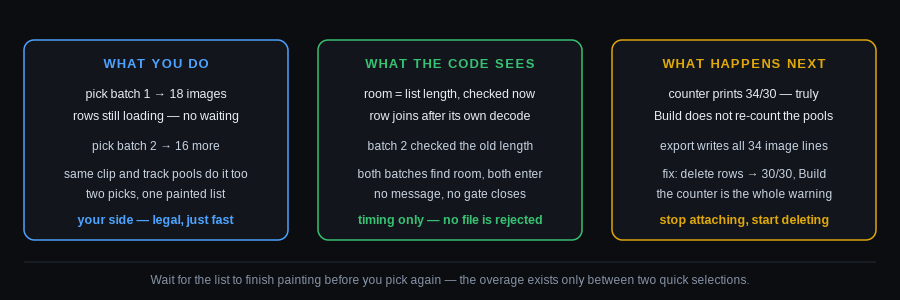
It is real, and it is the one way past 30 this page's single-batch rules do not cover: pick a second batch while the first is still being read in, and both batches are admitted against the same starting count. The mechanics are worth knowing precisely, because they explain why the number sticks. The cap check runs synchronously at the moment you choose files — the code computes how much room is left from the list's length as it stands right then — but images enter the list later, one at a time, when the browser finishes decoding each file. If the first selection is still decoding when the second dialog opens, the second check sees the old length, finds room that has already been promised, and admits its whole batch too; the counter, which just prints the list's current length over 30, then reads something like 34/30 truthfully. Clips and tracks have the identical shape: room is computed synchronously when you pick, rows are appended when each file's duration probe returns, so two quick picks can overfill those pools as well. What the rest of the page does with an over-full list is the surprising part: Build checks only that the prompt is filled and that image mode has an image — it never re-counts the pools — and the export prints the list as it is, so a 34-image job will export with 34 image lines in the .txt and 34 entries in the .json, sent to the host as-is. The overage is therefore yours to fix before you queue anything, and the fix is subtractive: remove rows from the list until the counters read 30/30 and 10/10 (or 9/10 etc.), then Build again so the sheet is regenerated from the corrected list — the sheet is rebuilt from scratch each time, so nothing from the over-full version survives. Practical rule: if the counter ever reads above its cap, stop attaching and start deleting, because no message will appear and no gate will close; the counter reading high is the entire warning system. And prevention costs one habit: wait for the list to finish painting the batch you just chose — rows appear as each file is read — before opening the picker again.
Can I weight my references — is there a weight or priority field in the export?
No, and it is worth knowing exactly what a "weighted reference" can mean here before you go looking for the control. A poster on r/Seedance_AI asked, "Can someone show me an example of a weighting reference? I understand how it works (I think) just need prompting examples." (community-2026-11-12, https://www.reddit.com/r/Seedance_AI/comments/1xq8kro/), and the honest answer from this builder's side is that the reference list itself carries no weights to express. Look at what the two exports actually contain: each image is one line — image 1 · name.jpg — each clip and track is a filename paired with its probed seconds, and the .json mirrors that with plain name strings and name-plus-seconds objects. There is no weight number, no priority key, no "main character" tag and no comment column anywhere in either file, so nothing in the sheet can tell the host that image 1 matters four times more than image 7. What does exist instead is position and wording. Position: the numbering comes from the list order you painted, so if order means anything to the host you control it by deleting and re-adding until the list reads the way you want — but that is sequence, not strength, and this page makes no claim that any host reads sequence as emphasis. Wording: the prompt is the one place where emphasis is expressible, because it travels verbatim into the PROMPT block — naming the anchor subject first, stating which reference is the outfit or the place, and writing the role of each attachment in plain sentences is the only weighting syntax this hand-off has. And keep the roles honest to what the file list can say: references travel as filenames with no role tags, so “this file is the logo” has to be a prompt clause, not an assumption about the numbering. The workflow page's one-changed-clause method is how you test whether a weighting sentence did anything: two sheets, only the emphasis wording changed, same references in the same order, and the renders themselves name the winner. Practical rule: weight with the prompt, order the list deliberately, and treat any expectation of hidden strength multipliers on the files as something only a specific host's documentation could promise — check that host's docs on the day you use it.
Is there a video-to-video mode on this builder?
No — the mode row offers exactly two choices, Text to Video and Image to Video, and a base clip is never one of them. What a video can be here is a reference: up to 10 clips, holding their own 30-second pool, listed under REFERENCES as video 1 · name.mp4 · 12.3s in the .txt and as name-plus-seconds objects in the .json. The distinction is enforced at Build: Image to Video refuses to run unless a first frame or at least one reference image exists, so a sheet whose only media is a video will not pass that gate, and in text mode a video simply rides along as one more filename line. Two consequences worth knowing before you plan a motion-transfer job. First, no clip carries a role: nothing in either export says "this file is the motion source", so if the host is meant to read one clip as the movement to transfer, that assignment has to be a prompt clause — the same rule the weighting answer above gives for images. Second, the local preview never draws your clips: the canvas composites only the first and last frame, so a video reference cannot be checked here at all; what you can check is the list itself — order, count and probed seconds. Whether a host then offers a true video-to-video upload with its own base-video slot is that host's interface, not this sheet's; the sheet's job is to name the clips, their lengths and your prompt's instruction about them. Practical rule: treat video references as ingredients named on the sheet, not as a mode — if the job is "re-shoot this clip", write into the prompt which clip to follow and what to keep, and confirm the host has a slot for the original before you spend anything.
My character sheet keeps coming back pasted into the scene - what can this builder control?
Exactly what lands on the sheet, and the sheet has no lighting fields: a reference image travels as image 1 · name.png in the .txt and as a bare filename in the .json (app.js:263-267, app.js:289-293), with no background colour, no illumination and no time-of-day attribute in either export, so "match the lighting" cannot be written as a reference property here. The free-text prompt is the only channel where a lighting instruction can travel, and the first-frame slot pins the opening composition when the opening shot is the problem. What this page cannot do is judge the result: it never renders, so whether hair edges and colour temperature line up between your sheet and the host's output is the renderer's behaviour, not something to verify here. What you can check is what you actually sent - the sheet lists every filename you attached, with probed seconds for clips and tracks - so the honest test is two sheets rather than one sheet edited in place: same prompt, same settings, first with your neutral-background sheet attached and then without (or with a scene-matched frame in the first-frame slot), and let the host's output settle the comparison. Practical rule: treat the reference as a named file, lighting instructions as prompt clauses, and the A/B as two exports - the sheet records your side of that experiment, and only your side.
I added a reference image and it never appeared — no thumbnail, no warning. What happened?
The file was dropped at the decoding step, and this branch drops it in silence. Every reference image goes through one reader: the change handler makes a local blob URL and asks the browser to decode it (app.js:118-124). If the browser cannot read the file as an image, the error path revokes that URL and calls back with nothing (app.js:122), and the reference branch only adds an item when the callback returns one (app.js:143-145) — so nothing enters the state. The thumbnail grid gets no tile, the counter keeps its old number, and because the filename never entered the state it cannot appear in the .txt REFERENCES list or the .json arrays either: an image dropped while decoding is not on the job at all. No status line fires for this branch. Two neighbouring behaviours explain why the numbers you see can disagree with the numbers you picked. First, the first-frame and last-frame slots use the same reader but announce its failure — "That image could not be read. Try another file." (app.js:177) — so a broken file in a frame slot speaks up while the same file in the reference grid does not. Second, the "N skipped" warning counts selection overflow only: it compares how many files you chose against the room left under the 30-image cap (app.js:141-142), so a file that fails while decoding is never part of that count. Practical rule: after every upload, glance at the thumbnails and the counter — if a file keeps vanishing, the browser simply cannot read it, so convert it to a .png or .jpg and add it again. What this page will not do is look inside the picture: decoding is the only check it performs.
I render every scene as its own job to save credits — why do backgrounds and side characters drift even when I attach the same reference images?
Because identical inputs and identical renders are two different promises, and only the first one is on this page. The question as asked is real and was put in those words on r/Seedance_AI on 2026-11-21: "I usually generate scenes independantly to save credits and for easier editting. But different videos also make the background and the supporting characters inconsistent, even though I put in the same reference images." (https://www.reddit.com/r/Seedance_AI/comments/1y1vs0r/). What this builder can guarantee is exactly the input half: the sheet lists every reference as image 1 · filename in the .txt and as the same filenames in the .json arrays (app.js:263-267, app.js:289-293), the prompt travels as the single verbatim string you typed, the settings travel as one SETTINGS line (app.js:279), and the first and last frame travel as named start-and-end contracts — two jobs built from one untouched sheet send the same words, the same files in the same list order and the same settings. What it cannot do is make two separate renders agree: there is no seed, no lock, no weight field and no cross-job link anywhere in either export (see the weighting answer above), and this page keeps no history, so job two is only ever as identical as your re-attachment makes it — keep the .txt, re-attach the same files in the same order and re-set the four chips, because nothing here can reload the sheet for you. Practical rule: before blaming the reference set, diff the two sheets; if the inputs match line for line, the drift belongs to the renderer, and the fix is a prompt clause that names what must stay fixed — background, supporting cast, or both — not another image in the pool.
I attached my clips and pressed Build straight away — why is one row missing from the sheet?
Because Build reads the list as it stands at the moment you press it, and a file you just chose is not in that list yet. Each clip and track is admitted by its own metadata probe: the selection handler starts one probe per file and appends the row only when that file's duration has been read (app.js:192-197), and the list is painted once before any of those probes has finished (app.js:199) — which is why, as the ordering answer above says, rows can land out of click order. Press Build inside that window and the sheet is generated from the shorter list: buildText() walks whatever is in state right then (app.js:255-281), so the still-probing clip has no line in the .txt and no entry in the .json (app.js:289-293). Nothing is lost — the row appears a moment later and the output box rewrites itself the moment it does, because painting a list calls syncOut() (app.js:223, 49-51). Two details worth knowing. First, the downloads are not all equal: Download .txt and Download .json re-run the builder function on click (app.js:457-465), so a file taken after the rows land is complete, while one taken in the same instant as Build is not; the frame .png and the preview .webm are unaffected either way, because neither ever draws your references. Second, the fix is free — the sheet is rebuilt from scratch on every Build (app.js:425-430), so pressing Build again once the list has painted regenerates it with the full set and nothing from the short version survives. Practical rule: pick your files, watch the rows finish landing, then Build and read the REFERENCES block back once before you download — the list on screen is the order of record, and the sheet should agree with it line for line.
Next step
Open the builder, watch the three counters as you attach files, and keep the amber note clean before you export. For what happens to the exported job afterwards, read the free workflow page; for how a reference-heavy job is priced, read the credits page; for the two-frame slots used alongside references, read the first and last frame guide.